Admin Projects
The Projects tab allows you to manage your projects and their environments. A project typically represents a single application, and each project can have multiple environments (e.g., Production, Test, Staging).
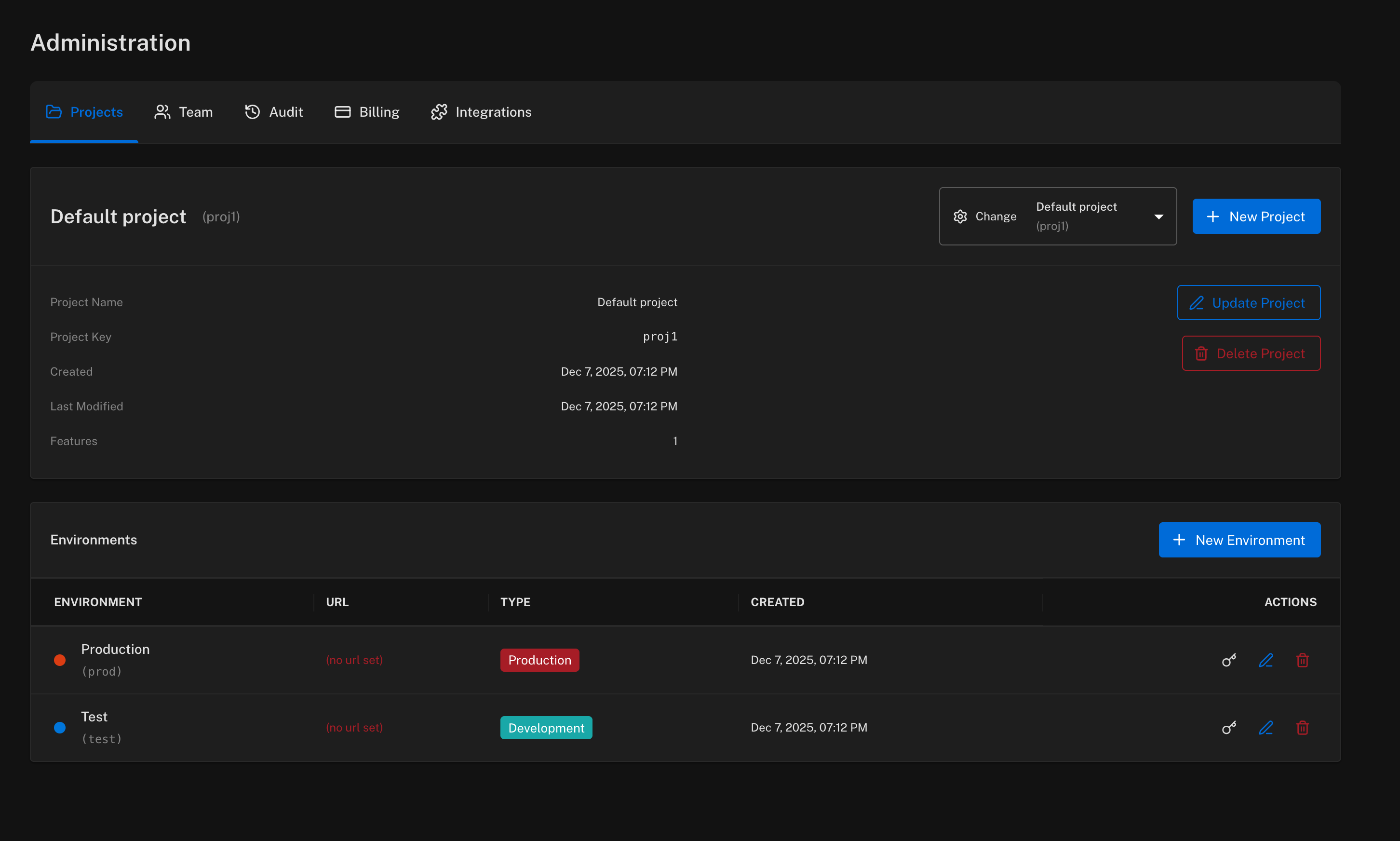
Project Details
The project view displays:
- Project Name — the display name of the project
- Project Key — a unique identifier used in URLs and API calls
- Created — when the project was created
- Last Modified — when the project was last updated
- Features — the number of feature flags in the project
Use the Change dropdown to switch between projects.
Creating a Project
Click + New Project to create a new project.
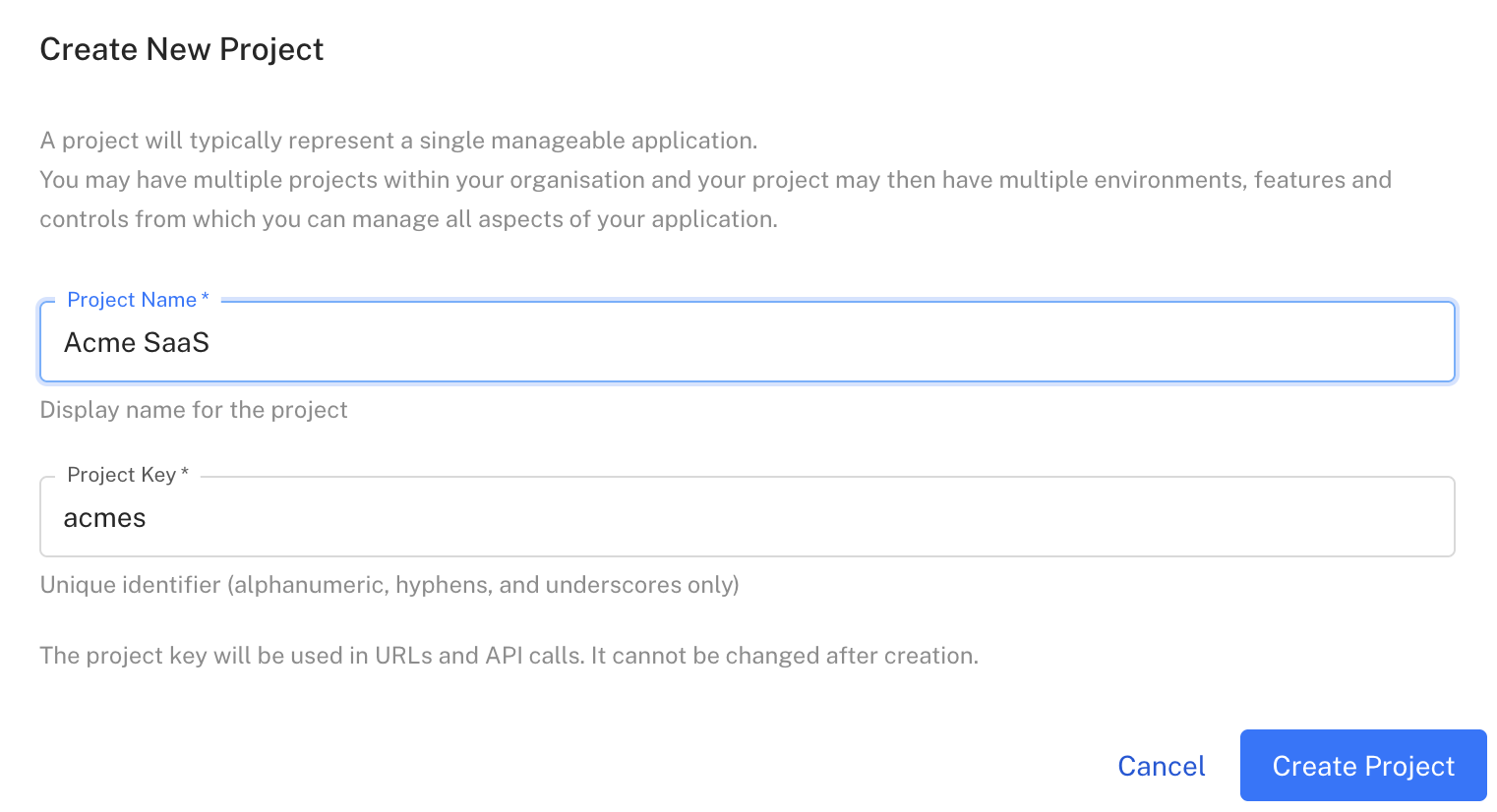
Enter a Project Name (display name) and a Project Key (unique identifier). The project key is used in URLs and API calls and cannot be changed after creation.
Updating a Project
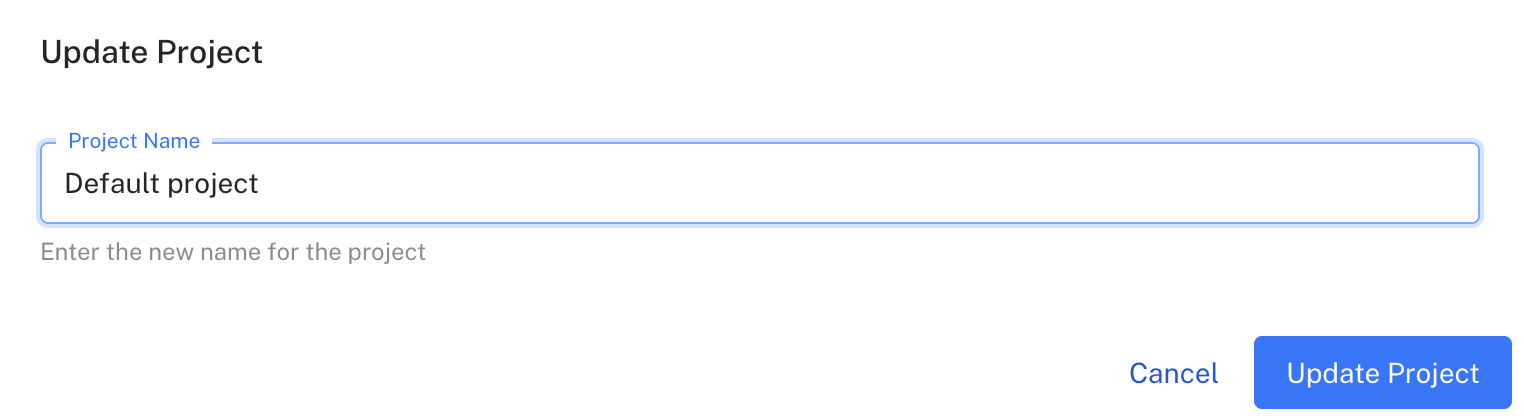
Click Update Project to rename the project.
Deleting a Project
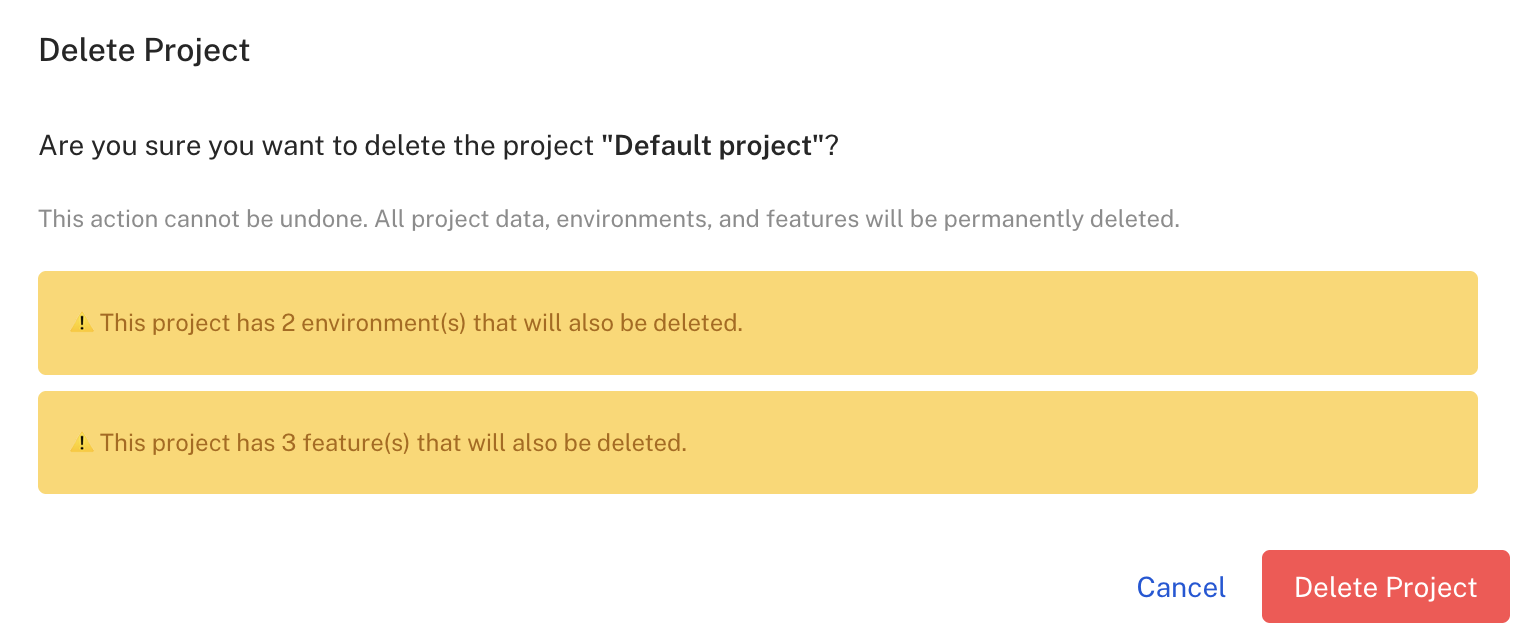
Click Delete Project to permanently remove a project. This action cannot be undone and will delete all associated environments and features.
Environments
Each project contains one or more environments. Environments allow you to manage feature flags separately across different stages of your application (e.g., development, staging, production).
The environments table shows:
- Environment — name and key
- URL — optional URL where the environment is hosted
- Type — Production or Development
- Last SDK connection — the most recent evidence that an SDK is using the environment: Active (within 7 days), Idle (within 90 days), Inactive (older) or No SDK connection. Hover for the SDK that last connected and when. See Is anything still using this environment?
- Created — when the environment was created
- Actions — view API keys, edit, or delete
Creating an Environment
Click + New Environment to add a new environment to your project.
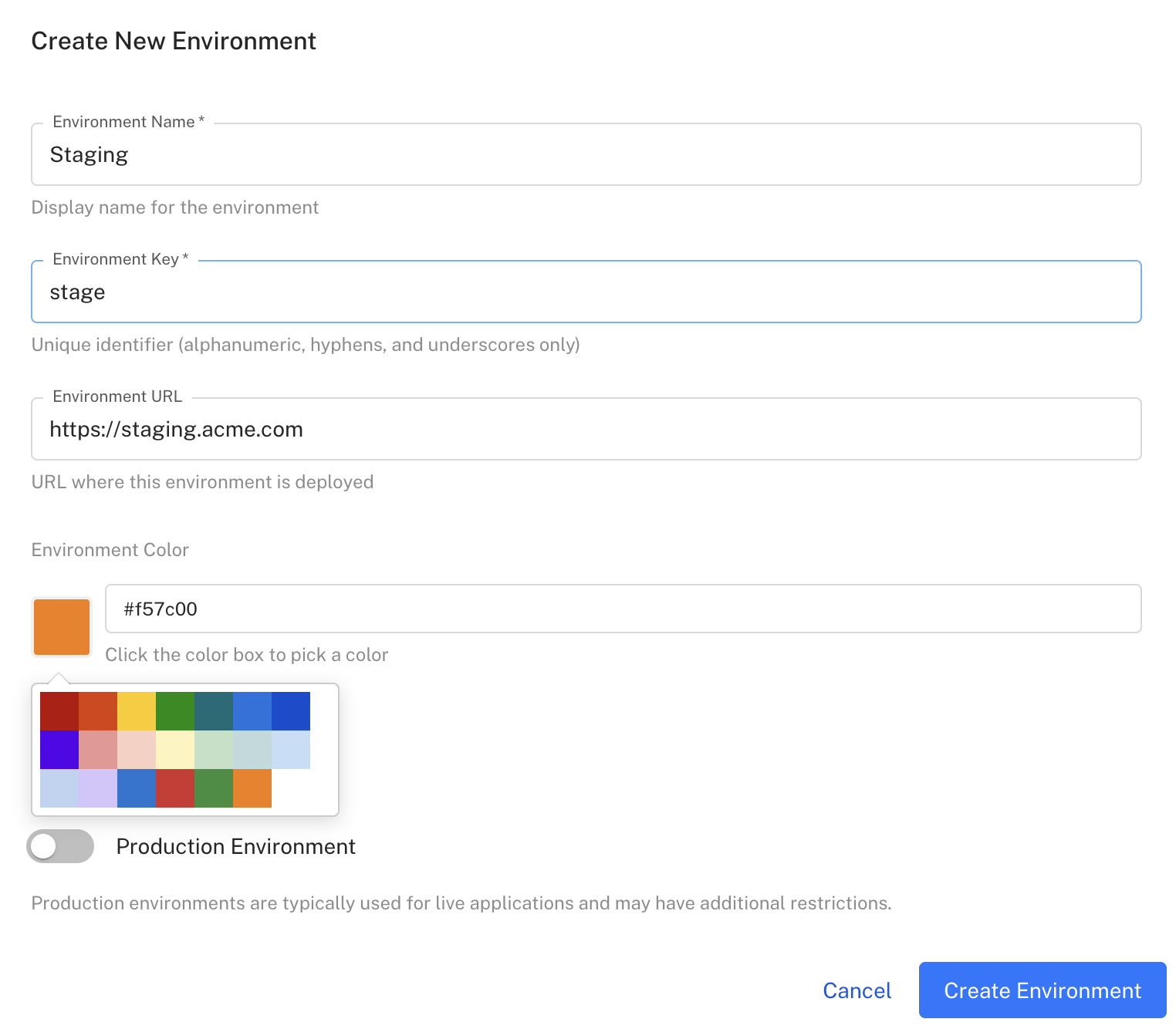
Configure the following:
- Environment Name — display name for the environment
- Environment Key — unique identifier (alphanumeric, hyphens, and underscores only)
- Environment URL — optional URL where this environment is deployed
- Environment Color — choose a color to easily identify the environment
- Production Environment — toggle on for production environments (may have additional restrictions)
Updating an Environment
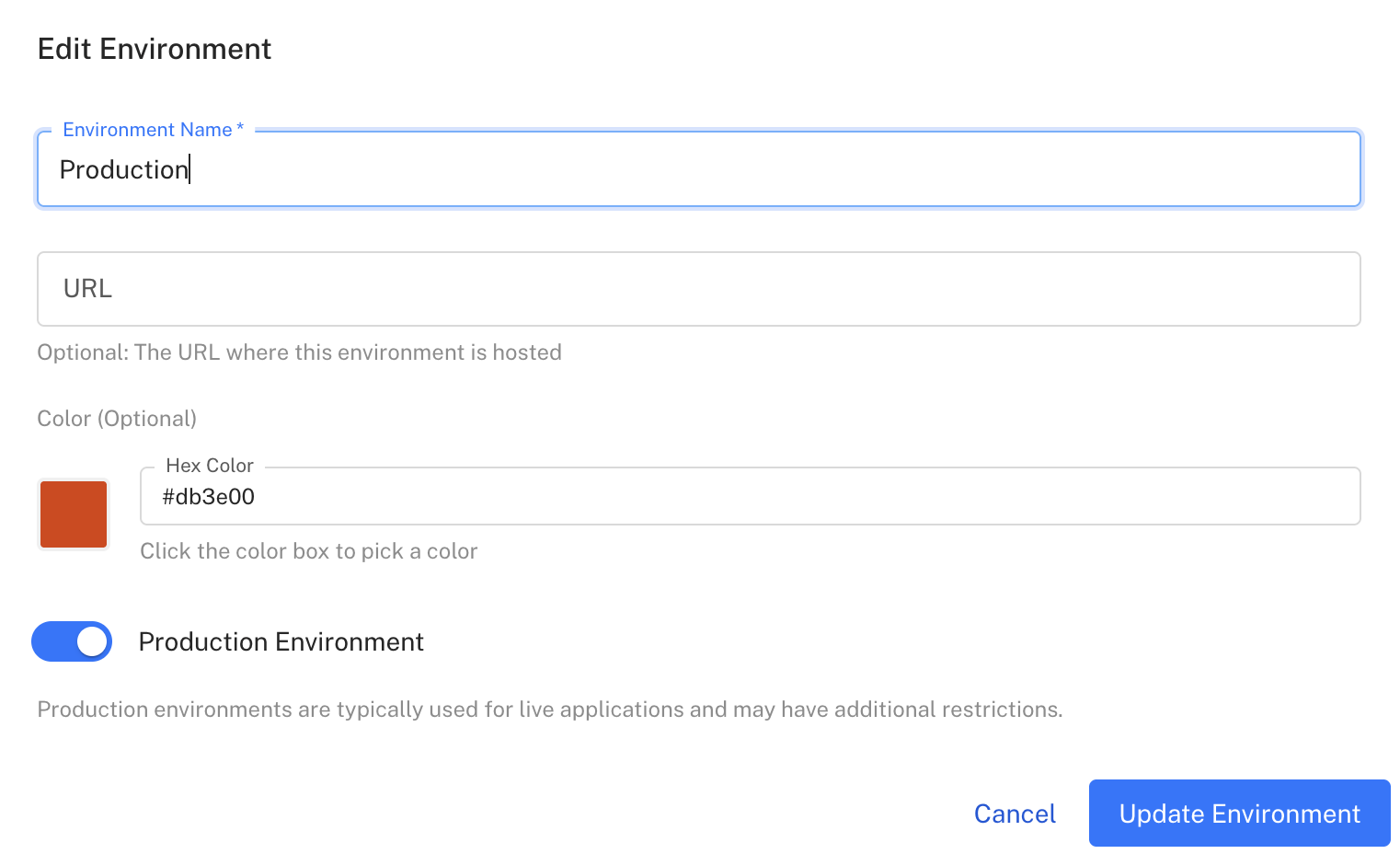
Click the edit icon in the Actions column to update an environment's settings.
Viewing API Keys
Click the key icon in the Actions column to view the API keys for an environment.

Each environment has two API keys:
- Client SDK API Key — use this key in client-side SDKs (JavaScript, React, mobile apps)
- Server SDK API Key — use this key in server-side SDKs (Node.js, Java, Python, etc.)
Click the copy button to copy a key to your clipboard.
Deleting an Environment
Click the delete icon in the Actions column to remove an environment. This action cannot be undone and will permanently delete all environment data and configurations.
The confirmation dialog tells you whether an SDK is still talking to the environment before you commit — an environment that was contacted in the last week is flagged in red, because deleting it disconnects that SDK immediately: its API keys stop working and every flag falls back to its coded default.
Compare environments and copy targeting
Click Compare environments on the project's Environments tab to see, feature by feature, whether two environments evaluate the same and to copy targeting from one to the other — with the same permission and approval gates as editing directly. See Compare environments and copy targeting.
Is anything still using this environment?
Featureflow records a connection stamp every time an SDK makes an authenticated request to an environment — including silent configuration polls that never evaluate a flag — so the Last SDK connection column reflects real traffic, not just flag changes. It shows the SDK that last connected (for example NodeJsClient/0.9.0) and how long ago.
Connection stamps have been recorded since August 2026. For activity older than that, Featureflow falls back to the most recent flag evaluation in the environment, so an environment that has not been touched since then still shows when it was last used rather than "No SDK connection".
Use it when consolidating or retiring environments: an environment showing No SDK connection or Inactive for months is a safe candidate to delete; anything Active still has something depending on it, even if none of its flags have changed recently.
The same data is available from the REST API: GET /api/v1/environments/usage?projectKey=<key> returns, for each environment, lastSeenAt, its source (CONNECTION, EVALUATION or NONE), and the last SDK's kind and identifier.
