Datadog Integration
"Latency spiked at 14:32 — what changed?" Very often the answer is a feature flag. The Datadog integration posts every flag change to Datadog's Events API, so it shows up in the event stream (Event Management → All Events) and as an overlay on the dashboards you are already looking at.
No Datadog Agent, Operator or Helm install is needed — Featureflow calls Datadog's Events API directly from its servers. All you need is an API key.
Before you start
You need:
- A Datadog API key. In Datadog, go to Organization Settings → API Keys → New Key.
- The Organisation Admin role in Featureflow.
1. Add the destination in Featureflow
Go to Administration → Integrations, find the Datadog card (the search box filters the catalogue), and click Add Datadog.
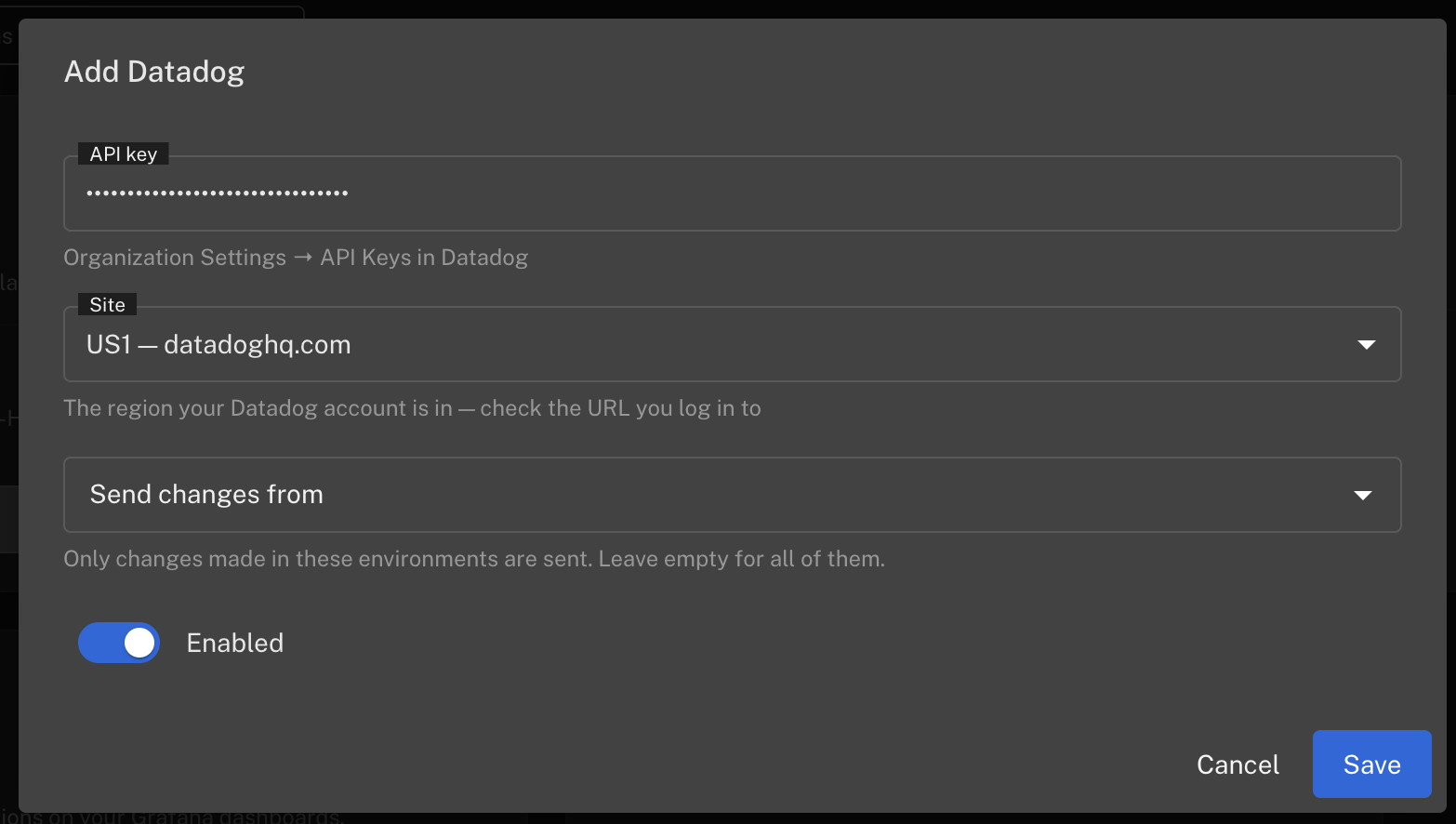
| Field | What to enter |
|---|---|
| API key | The key you just created. It is stored write-only: it is never shown again, and editing the destination without re-entering it keeps the stored one. |
| Site | The Datadog site your organisation logs in to — see below. Getting this wrong is the most common setup mistake. |
| Send changes from | The environments to send, listed as project:environment. Leave empty for all of them; most teams pick production only. |
| Enabled | Whether changes are sent. Turn it off to pause the destination without deleting it. |
You can add more than one Datadog destination.
Getting the site right
Datadog runs nine independent sites, and an API key from one is not valid on any other:
| Site | URL |
|---|---|
| US1 | datadoghq.com |
| US3 | us3.datadoghq.com |
| US5 | us5.datadoghq.com |
| EU1 (Germany) | datadoghq.eu |
| AP1 (Japan) | ap1.datadoghq.com |
| AP2 (Australia) | ap2.datadoghq.com |
| UK1 | uk1.datadoghq.com |
| US1-FED | ddog-gov.com |
| US2-FED | us2.ddog-gov.com |
Check the URL you log in to Datadog with, and match it here. A key from the wrong site does not fail silently — it shows up as a 403 when you test the destination below.
2. Send a test event
Save, then click the send icon on the destination. Featureflow delivers a synthetic change through exactly the same path a real one takes, so a success here means the key, site and permissions all work end to end.
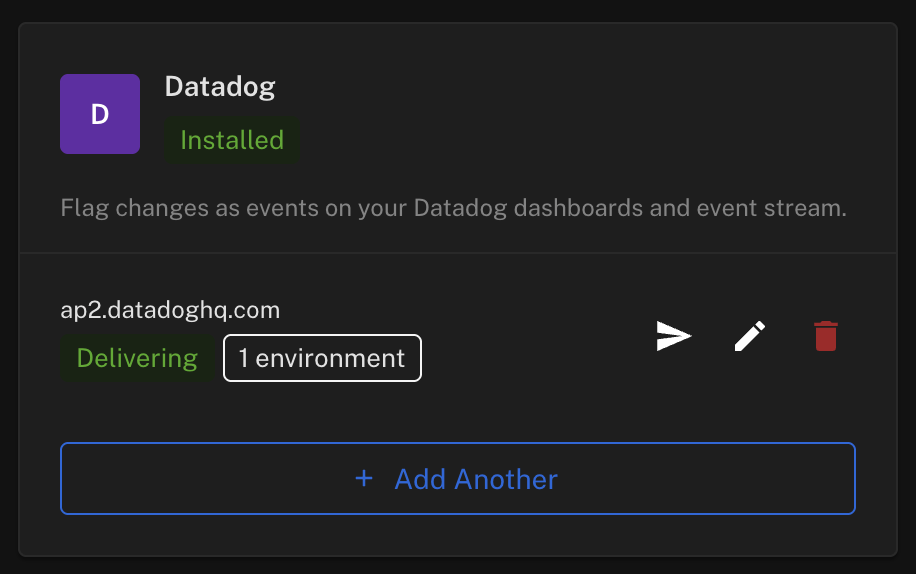
The destination shows Delivering once a delivery has succeeded, or the failure reason on hover — a 403 means the key is wrong, or it belongs to a different site than the one configured.
3. Find flag changes in Datadog
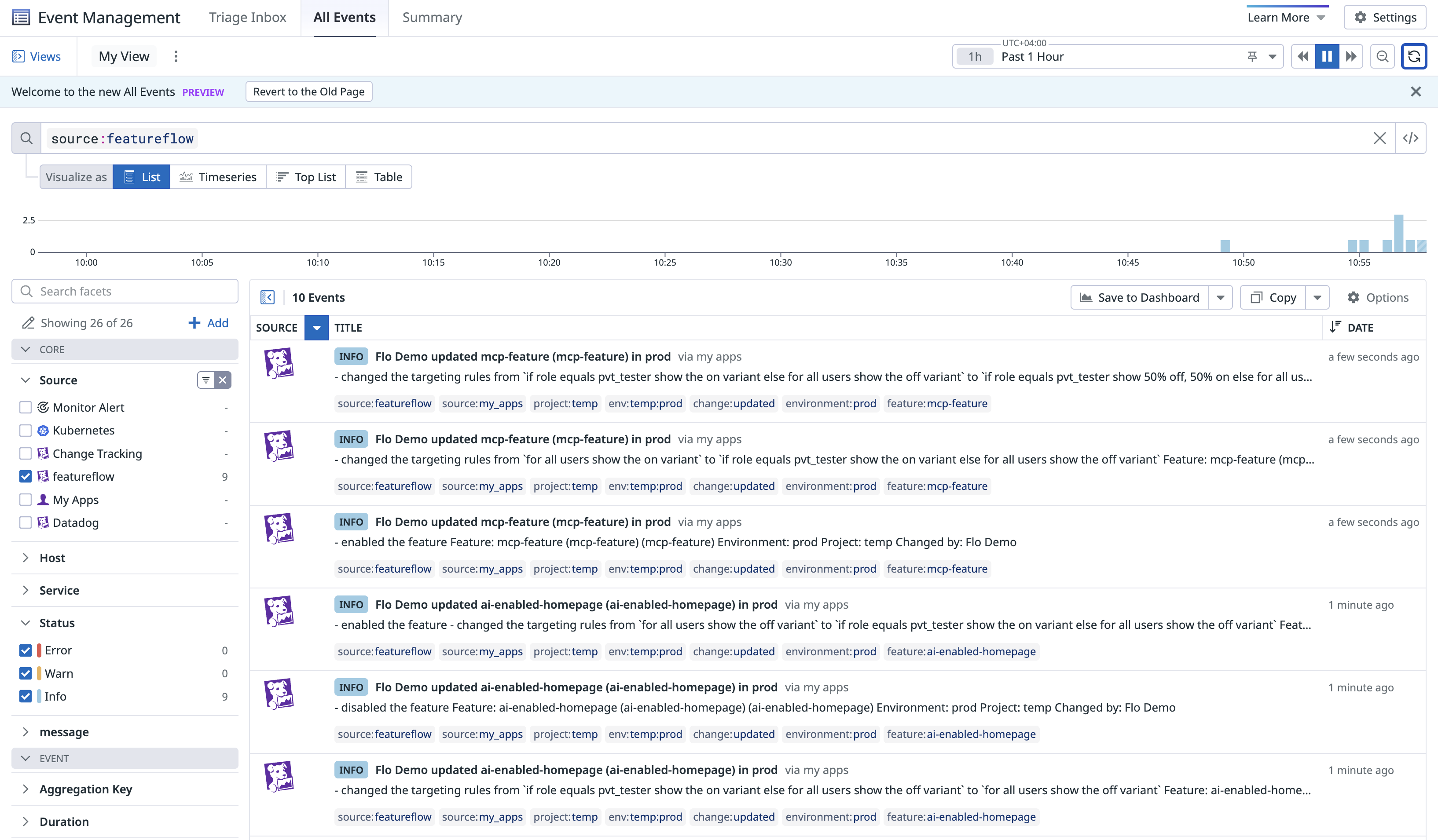
Events land with source:featureflow, alert_type: info, and source type feature flag. In
Datadog, go to Event Management → All Events and search source:featureflow — there is
also a featureflow source facet you can filter on.
Tags you can filter on
Every event carries these, so you can scope a query to exactly the changes it cares about:
| Tag | Example | Notes |
|---|---|---|
source:featureflow | source:featureflow | On every event. |
feature:<key> | feature:checkout-v2 | |
project:<key> | project:web | |
environment:<key> | environment:production | The friendly key. Not unique across projects. |
env:<projectKey>:<key> | env:web:production | Fully qualified — use this when two projects both have a production. |
change:<type> | change:updated | created, updated or deleted. |
4. Overlay flag changes on a dashboard
On a timeseries widget, or at the dashboard level, turn on Show Overlays and add an Events
query of source:featureflow. Narrow it with any tag above, e.g. env:web:production, to show
only the changes relevant to that dashboard.
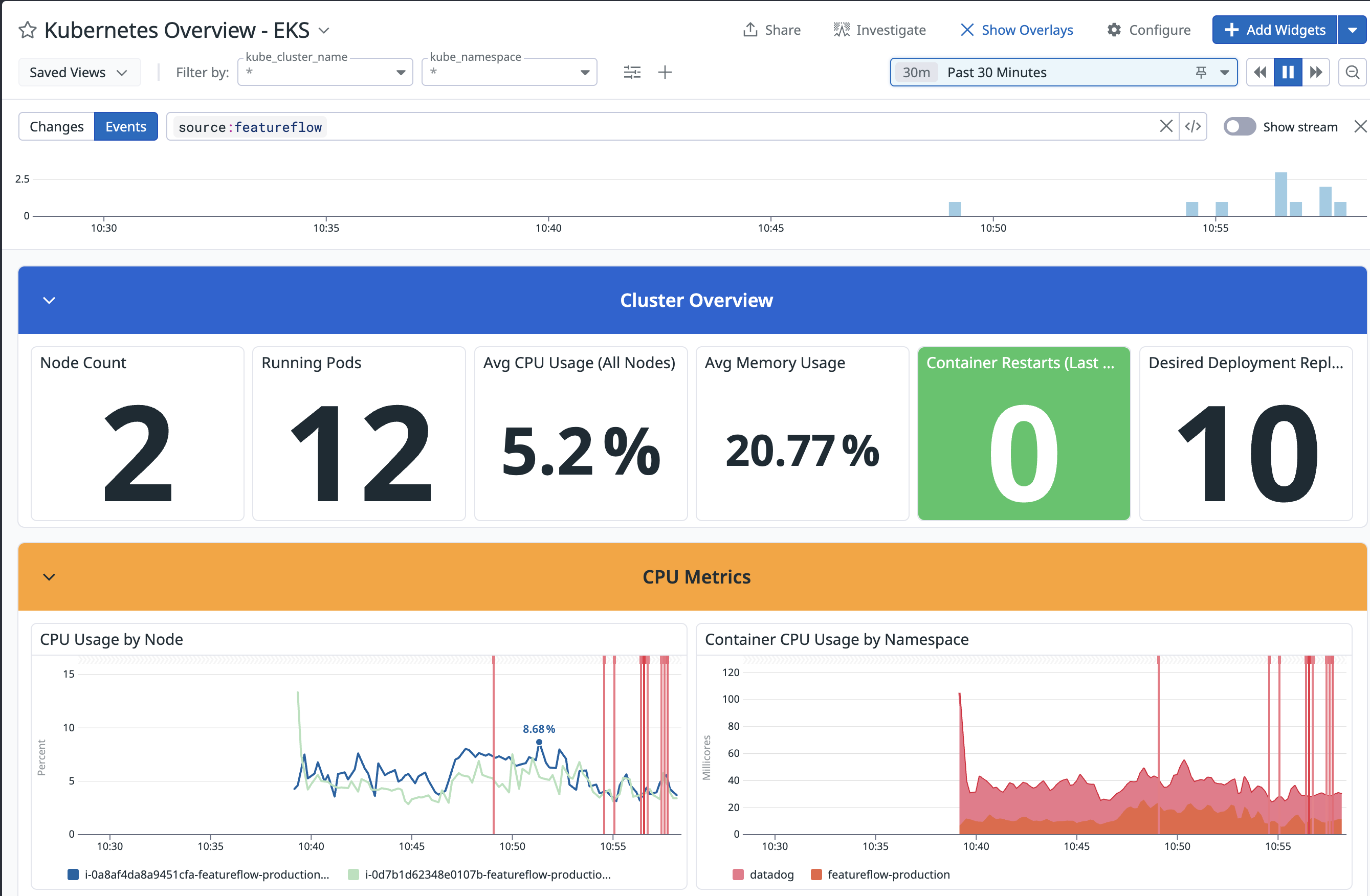
Flag changes appear as vertical lines over your graphs. Hover one to see what changed.
What gets sent
Feature flag changes — targeting rule and on/off changes, and features being created or removed. Housekeeping such as description edits and API key rotations is deliberately not sent.
Delivery happens after the change is saved and never affects it. If Datadog is unreachable, Featureflow retries once, records the reason on the destination, and moves on.
Troubleshooting
403. The API key is wrong, or it belongs to a different Datadog site than the one configured on the destination — keys are per-site. Check the URL you log in to Datadog with against the Site field.
Test events arrive but real changes do not. Test events ignore the environment filter by design. Check that the destination lists the environment you are changing flags in, and that it is Enabled.
Events show up in the stream but not on a dashboard. The widget (or dashboard) needs an event overlay query — see step 4. Events existing in Event Management does not mean any dashboard is configured to show them.