Release Pipelines
Release pipelines give your features a repeatable path to production. A pipeline defines an ordered series of phases — each mapped to an environment with optional default targeting rules and approval gates — and features assigned to the pipeline advance through those phases one at a time, from first rollout to fully released.
Instead of hand-configuring targeting in each environment for every feature, you define the rollout process once and every feature on the pipeline follows it.
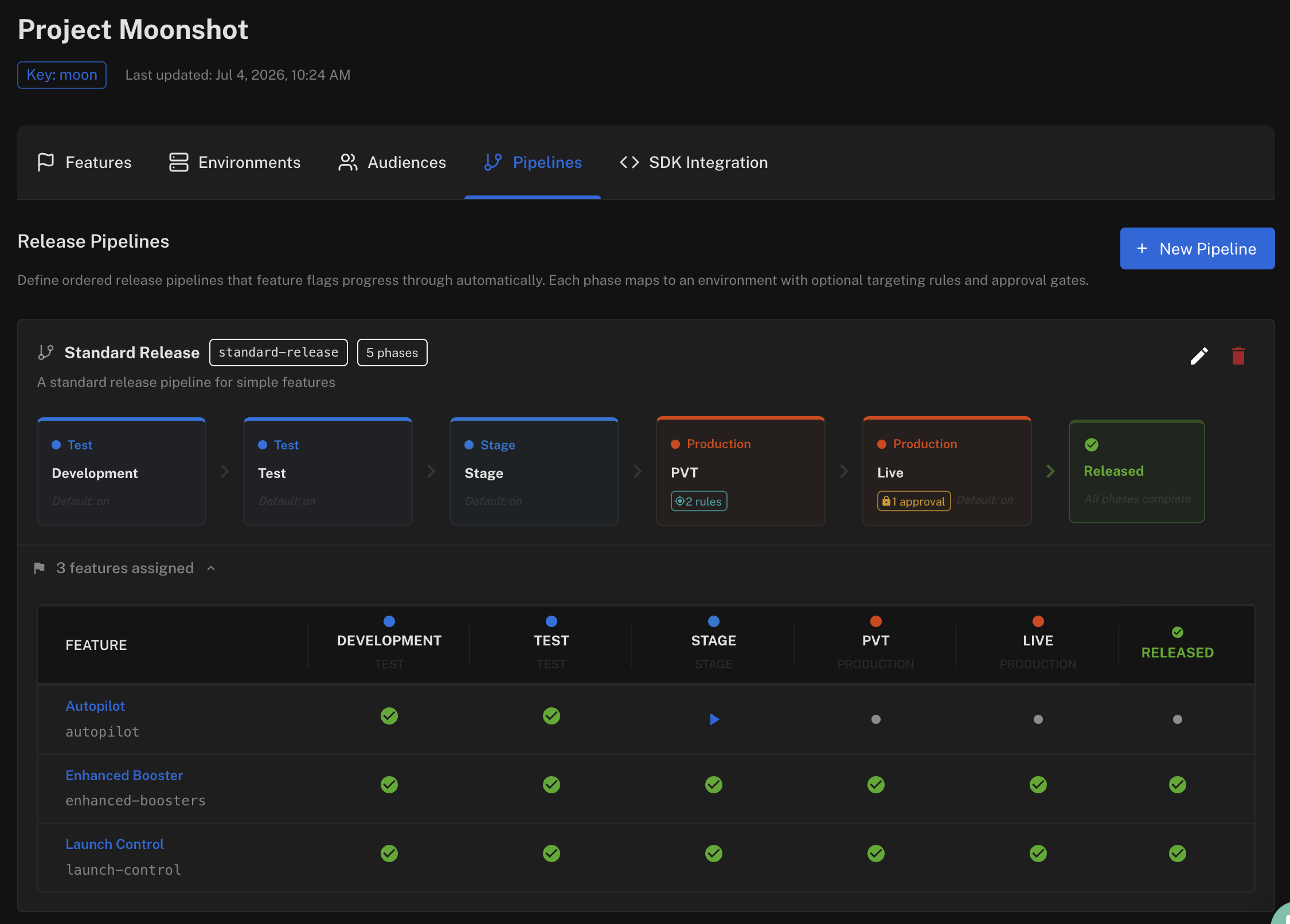
How Release Pipelines Work
- A pipeline belongs to a project and contains ordered phases. Each phase targets one environment and defines what happens when a feature reaches it:
- whether the feature is turned on or off in that environment
- optional default targeting rules to apply (for example, an internal-users-only rule for a PVT phase)
- an optional approval gate, requiring one or more approvals before the change takes effect
- Features are assigned to a pipeline and advance phase by phase. Advancing applies the phase's configuration to the feature in that phase's environment.
- The same environment can appear in more than one phase — for example a PVT phase that targets internal users in production, followed by a Live phase that opens production to everyone.
- When the final phase is applied, the feature is Released.
Creating a Pipeline
- Open your project and go to the Pipelines tab
- Click New Pipeline and give it a name (the key is generated for you) and an optional description
- Add phases in rollout order — drag to reorder. For each phase set:
- Phase name — e.g. Development, QA, PVT, Live
- Environment — the environment this phase applies to
- Feature on/off in this phase — whether advancing enables or disables the feature in the environment (on by default)
- Targeting rules — click Configure targeting to define the default rules applied when a feature advances into this phase. Leave empty to simply enable the feature for all users
- Require approval before advancing — and how many approvals are needed
- Click Create pipeline
Phase targeting rules are a template — they are only applied when a feature actually advances into the phase, which is also where production permissions and approval gates are enforced.
Assigning Features to a Pipeline
Open the feature, go to its Settings tab and choose the pipeline under Release Pipeline. The feature starts at the beginning of the pipeline — no changes are made to any environment until you advance it.
Assigning a different pipeline (or removing the pipeline) resets the feature's pipeline progress; the feature's current environment configuration is left untouched.
Tracking and Advancing a Feature
From the feature's Overview tab
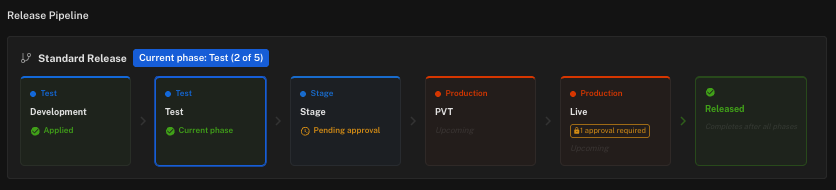
A feature assigned to a pipeline shows its Release Pipeline on the Overview tab: each phase, which phases have been applied, the current phase, and an Advance button on the next phase. Phases with approval gates are marked with an approval required chip.
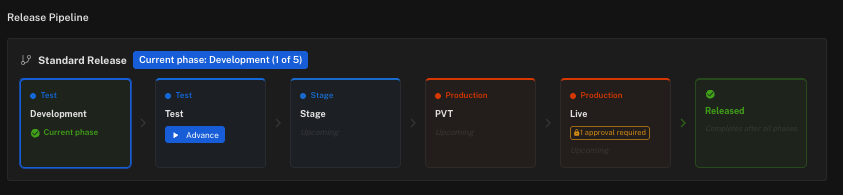
From the project's Pipelines tab
Each pipeline on the Pipelines tab has a feature board showing every assigned feature's progress across the phases. Click ▶ to advance a feature to its next phase.
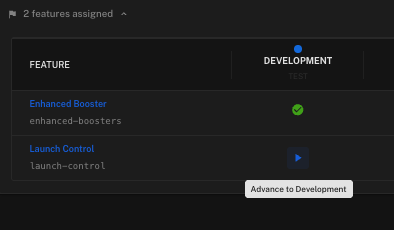
Advancing
Advancing shows a confirmation summarising exactly what will happen — the environment being changed, the targeting rules that will be applied (or that the feature will simply be enabled for all users), and whether the phase turns the feature off. You can add an optional comment for the audit trail.
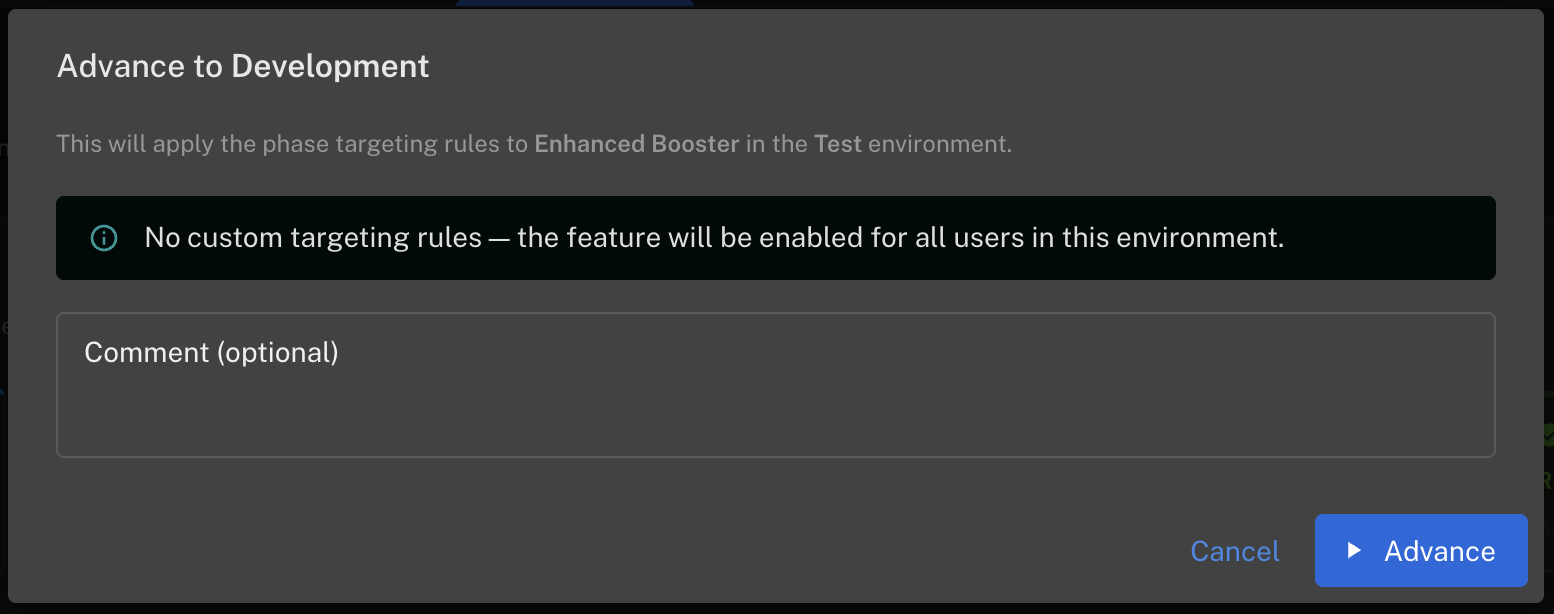
Click Advance to apply the phase. The feature's current phase updates immediately and the change is live in that environment.
Approval Gates
When a phase requires approval, the confirmation tells you before you advance:
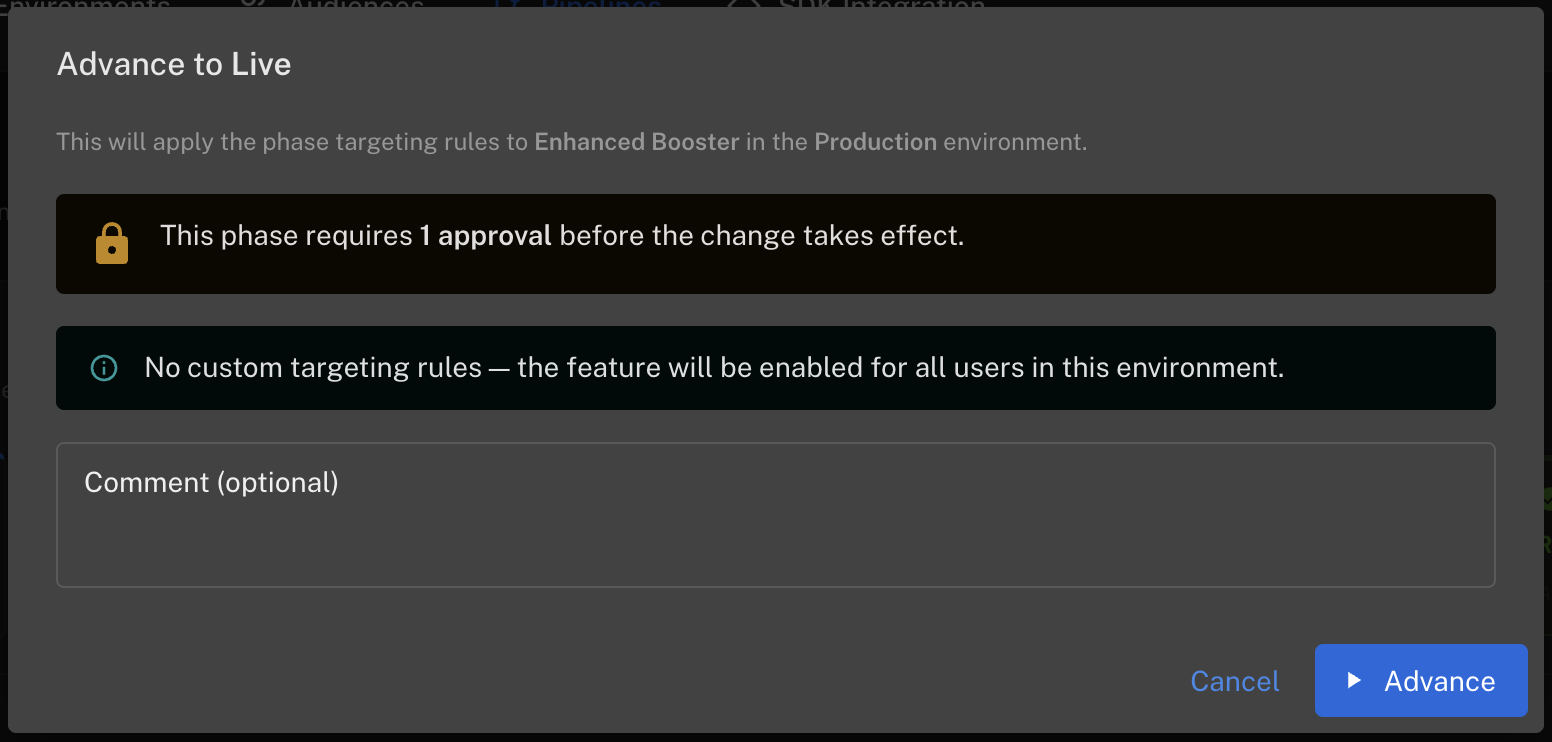
Advancing then submits the change for approval instead of applying it. The phase shows a Pending approval status — click it to open the approval request.
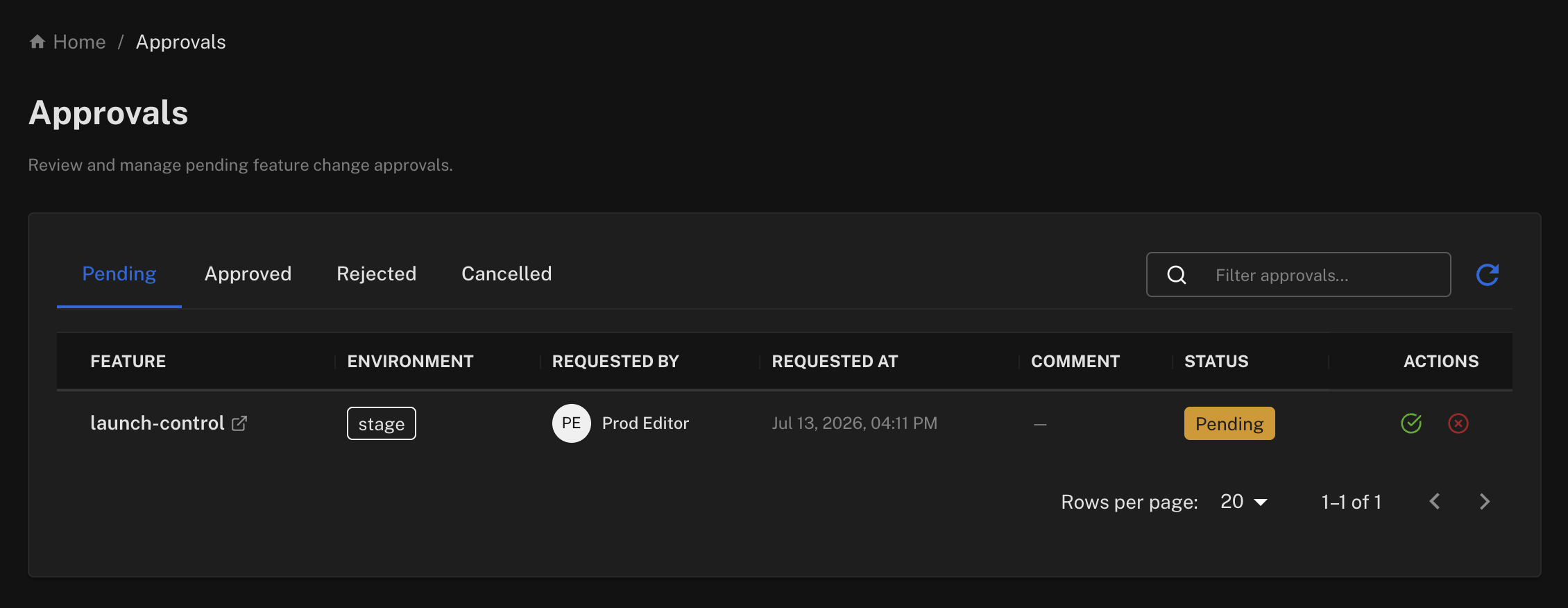
Approvers review the request from the Approvals view, exactly like any other approval — the pending change describes the phase's targeting that will be applied:
Once approved, the phase is applied and the feature moves into it. If the request is rejected or cancelled, the feature stays in its current phase and can be advanced again later.
Approval gates combine with the feature-level and environment-level approval settings — if any of them applies to the environment being changed, the advance goes through approval. See Approvals for how approvers are set up.
Releasing
When the final phase is applied the feature is Released — every phase shows as applied and the pipeline is complete:
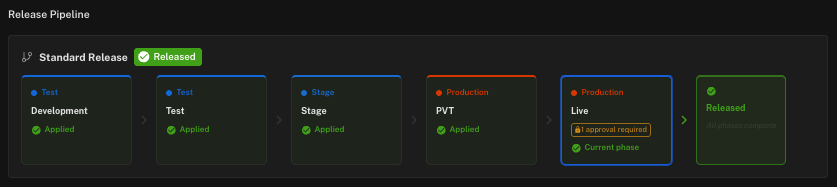
From here the feature is fully rolled out. Once it has been stable in production you can follow your usual clean-up process: remove the flag from code and archive the feature.