Audiences
An audience is a named, reusable set of targeting conditions — for example Gold Tier Users (tier is equal to gold) or Internal Testers (email ends with @yourcompany.com). Instead of repeating the same conditions across many features, define the audience once and select it in any targeting rule.
Audiences belong to a project and can apply to all environments or be scoped to a single environment.
Creating an Audience
There are two ways to create an audience: directly on the project's Audiences tab, or by saving a rule's inline conditions while editing a feature's targeting.
From the Project's Audiences Tab
- Open your project and go to the Audiences tab
- Click Add Audience
- Give the audience a name and choose where it applies — All environments, or a single environment
- Add one or more conditions (attribute, operator, value) — all conditions must match
- Click Add
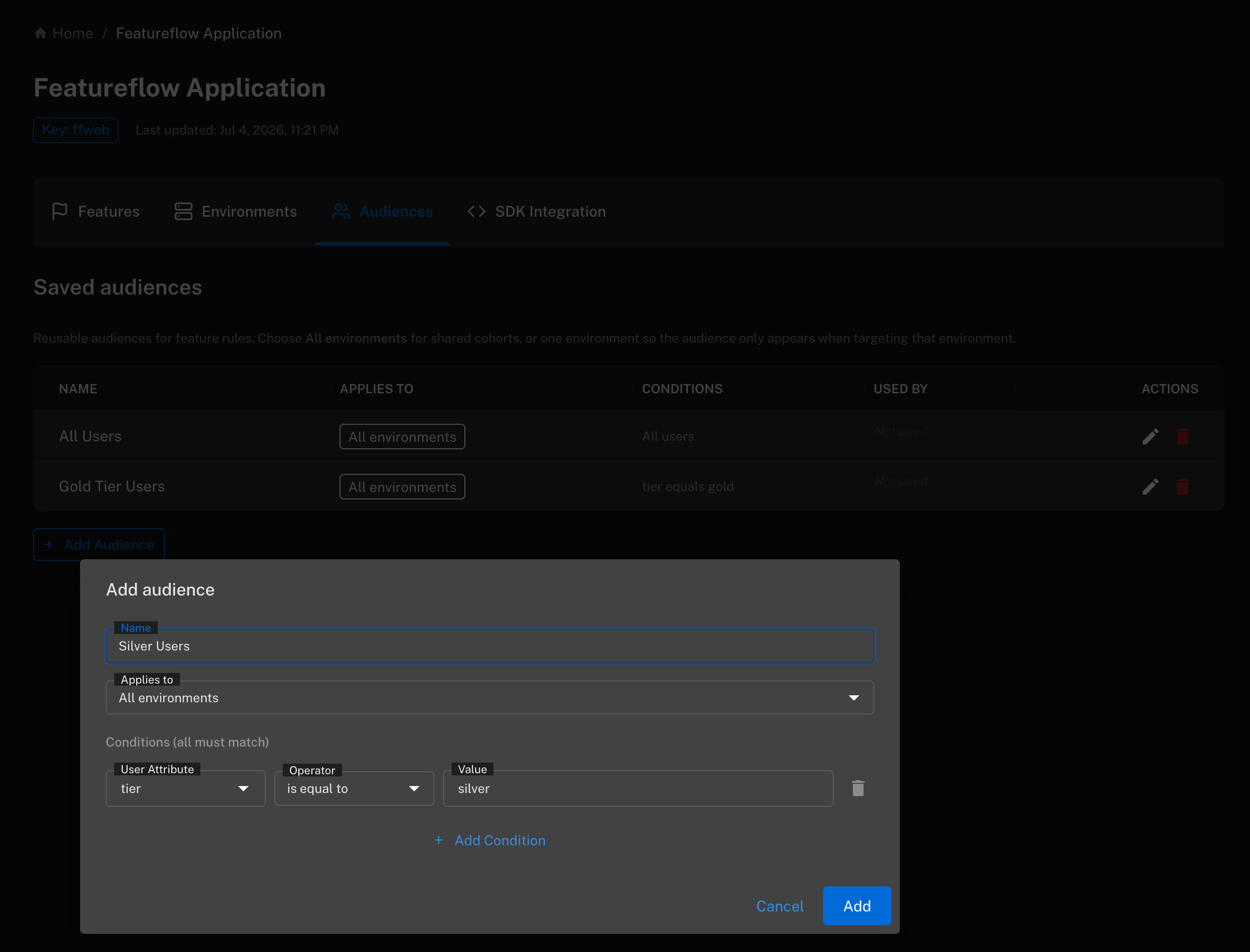
From a Targeting Rule
If you have already built the conditions inline in a feature's targeting rule, you can save them as an audience without leaving the page:
- Open a feature's Targeting tab and add a rule
- Leave Match users by as Define inline
- Add one or more conditions (attribute, operator, value)
- Click Save As Audience

In the dialog, give the audience a name and choose where it applies — All environments, or only the environment you are currently editing:
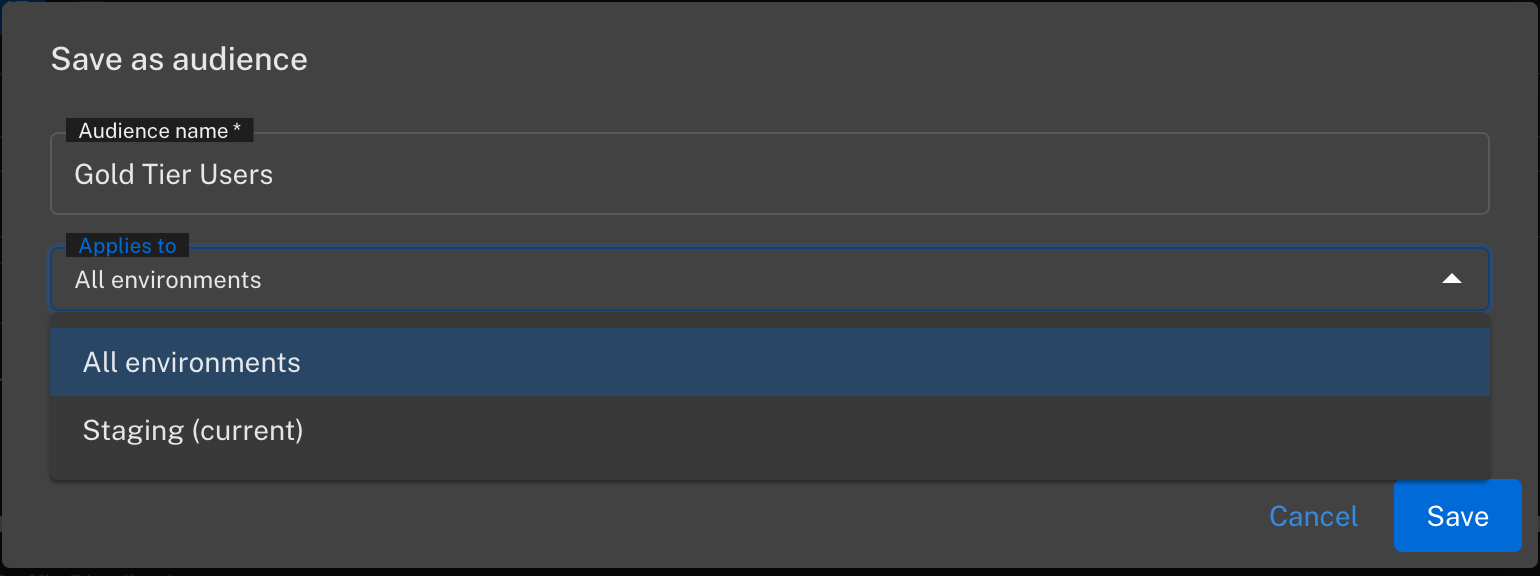
Click Save. The rule now references the saved audience, and the audience is available to every feature in the project.
Applying an Audience to a Targeting Rule
To use a saved audience in any feature's targeting:
- Open the feature's Targeting tab and add (or edit) a rule
- In the Match users by dropdown, select the audience instead of Define inline
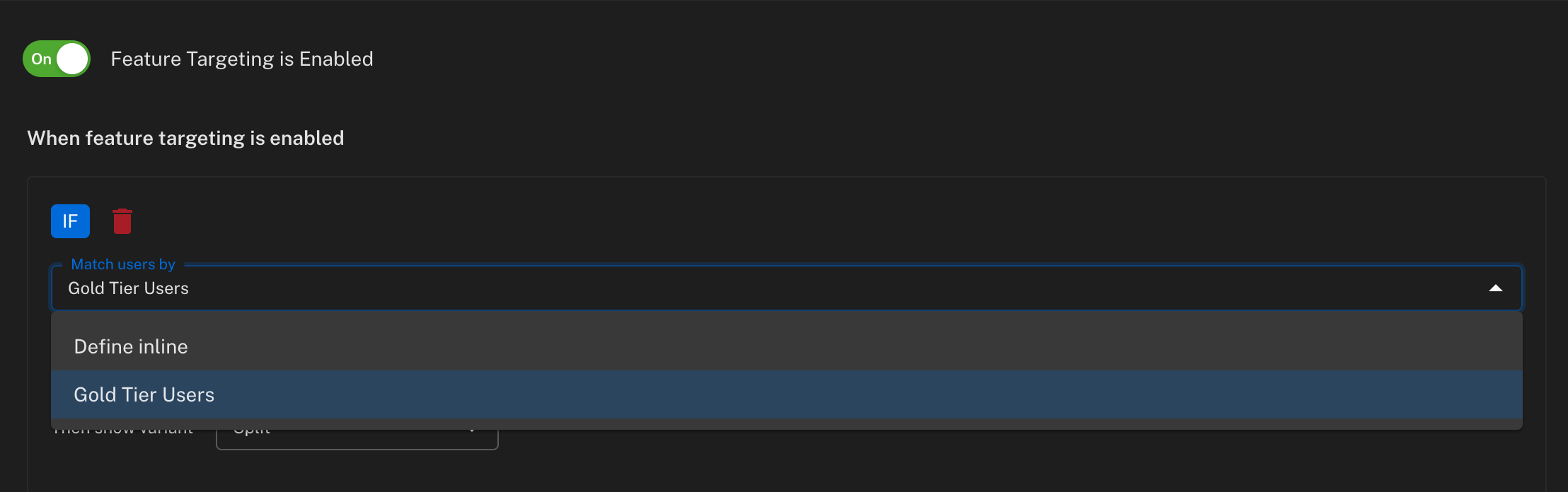
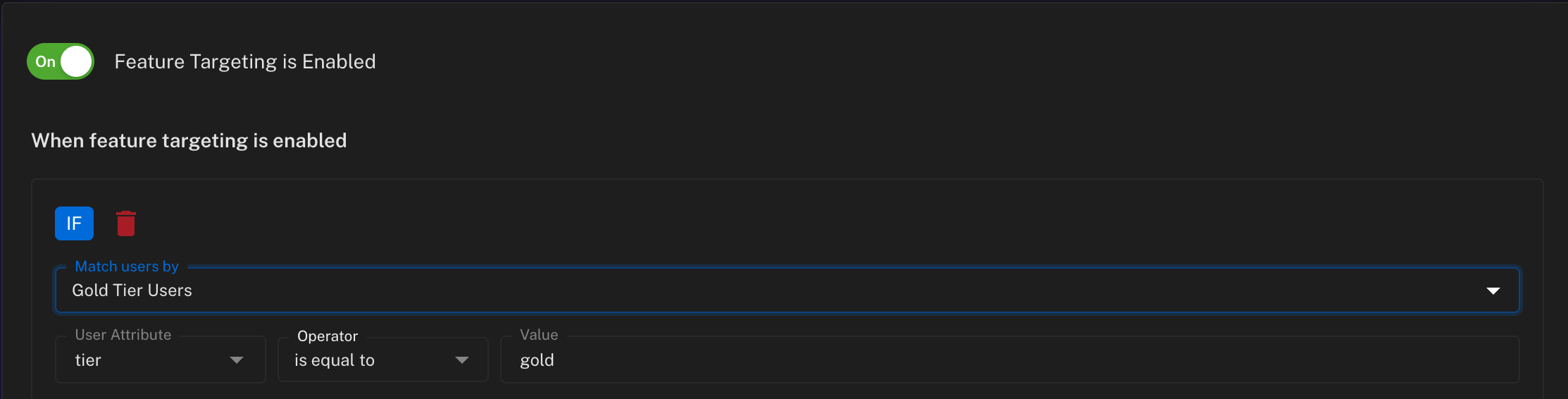
- The audience's conditions are shown read-only so you can see exactly who the rule matches
- Choose the variant (or split) to serve when the audience matches
- Click Save Targeting
Notes:
- An audience scoped to a single environment is only offered in that environment's targeting; audiences that apply to all environments are offered everywhere.
- The conditions of a saved audience are read-only within the rule. To tweak the conditions for one feature only, switch Match users by back to Define inline and edit them there.
- Rules using an audience are evaluated just like inline rules — top to bottom, first match wins, with all of the audience's conditions combined with AND logic.
Managing Audiences
Your project's audiences are listed on the Audiences tab of the project page. For each audience you can see its conditions, its scope (all environments or a specific one), and where it is used — with links to the targeting of each feature and environment referencing it. From here you can also edit or delete audiences.
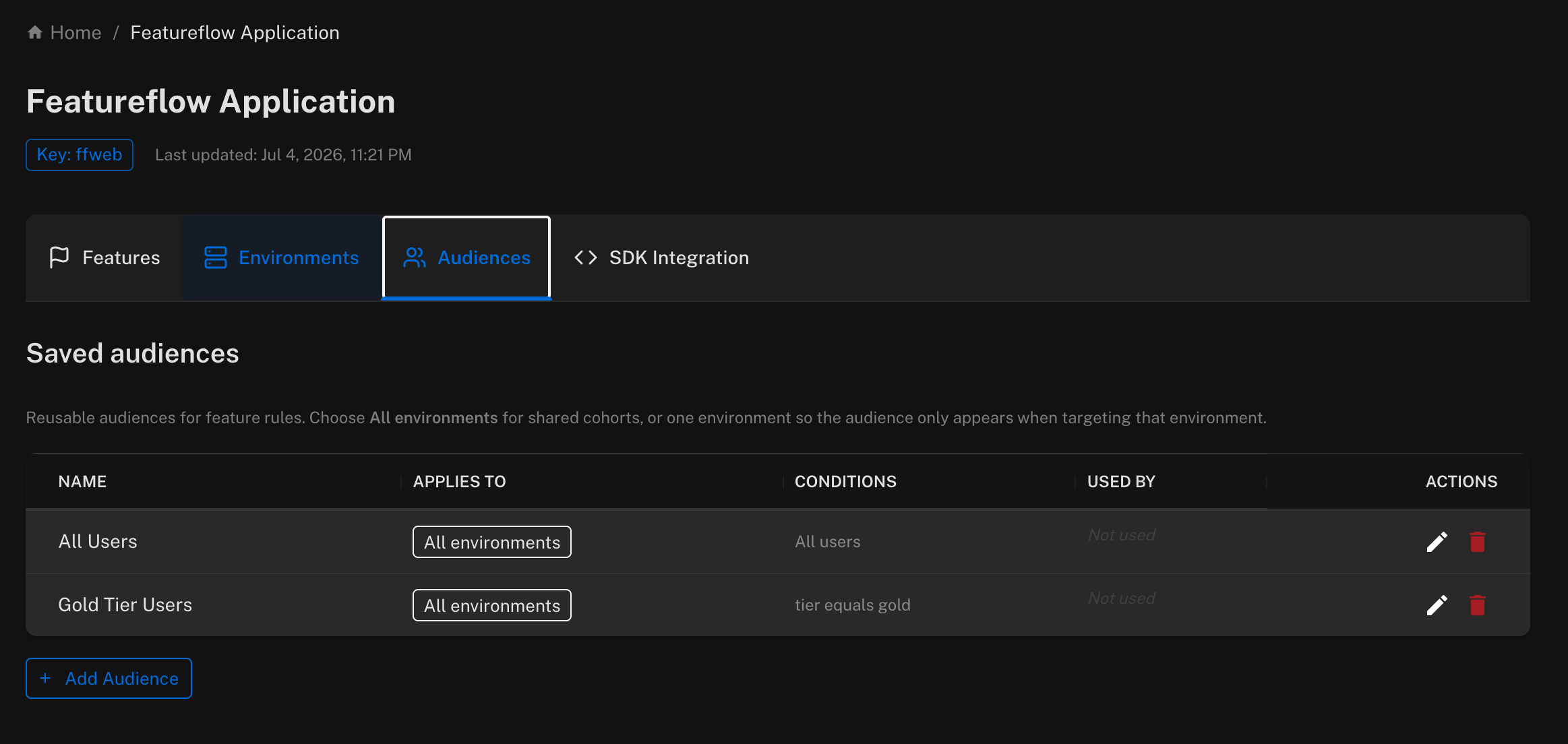
Because an audience is shared, editing it changes the targeting of every feature that uses it — the where-used list shows you the impact before you make a change.