User Contexts
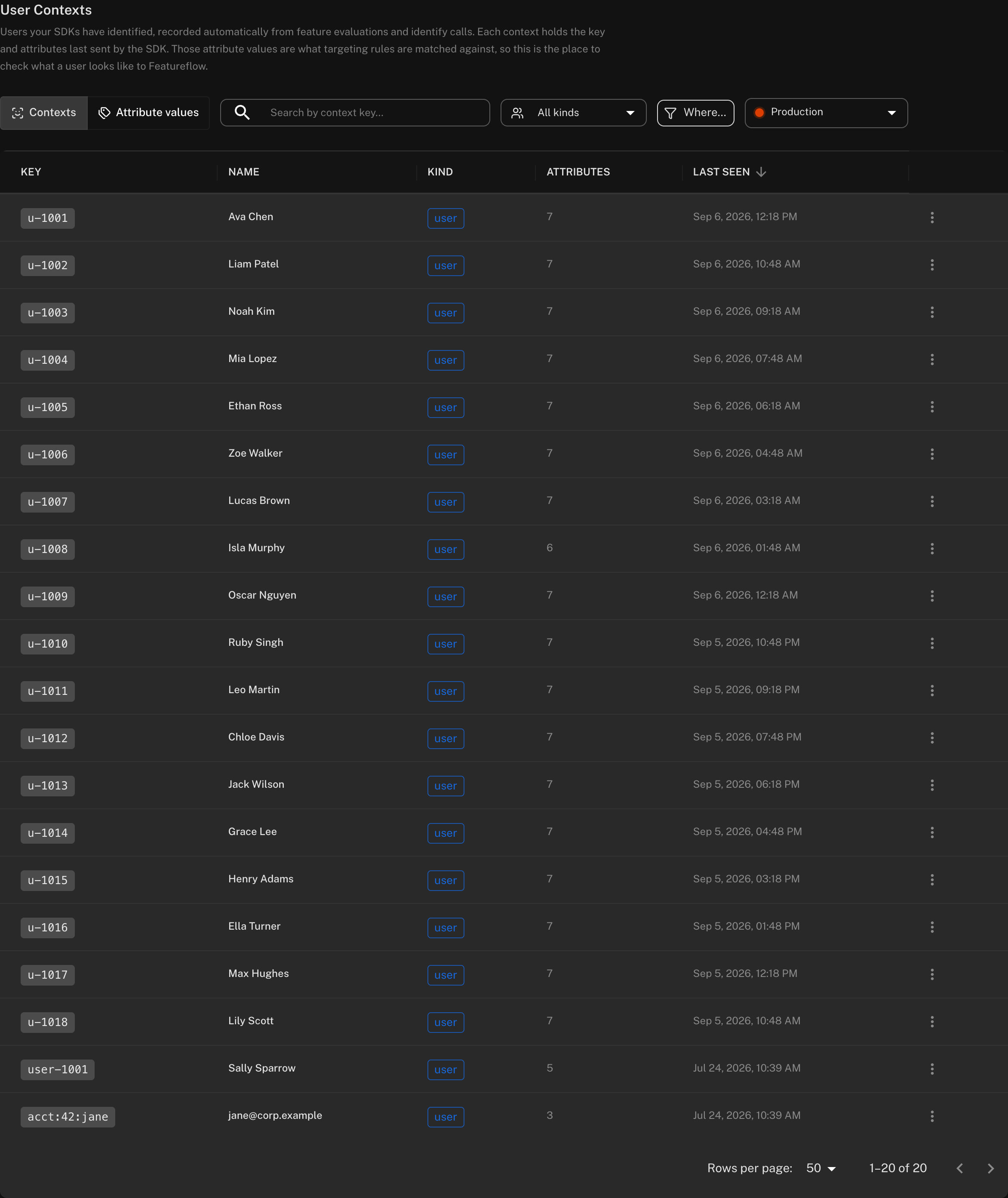
The User Contexts tab on a project shows the users your SDKs have identified, one entry per user per environment. Each context holds the key and the attributes the SDK last sent for that user, and the time it was last seen.
Featureflow records contexts automatically from SDK traffic. Every evaluate and identify call
that carries a user can create or update one; you never create them by hand.
Contexts matter because their attribute values feed targeting. When you build a targeting rule or an audience condition, the values suggested for an attribute come from what has been recorded here. If an application sends a wrong value, it shows up as a suggestion and can end up in a rule.
"User contexts" is the current name for this data. Featureflow will move to a broader contexts model, where a context can be a user, an organisation, a device or any other subject, without changing how the values are recorded or used.
Browsing contexts
Open a project and choose the User Contexts tab. The list is per environment; switch environments with the selector on the right.
- Search matches anywhere in the context key.
- Kind filters by subject type. Today this is
user. - Click the Key, Kind or Last seen column headings to sort. Last seen sorts newest first by default.
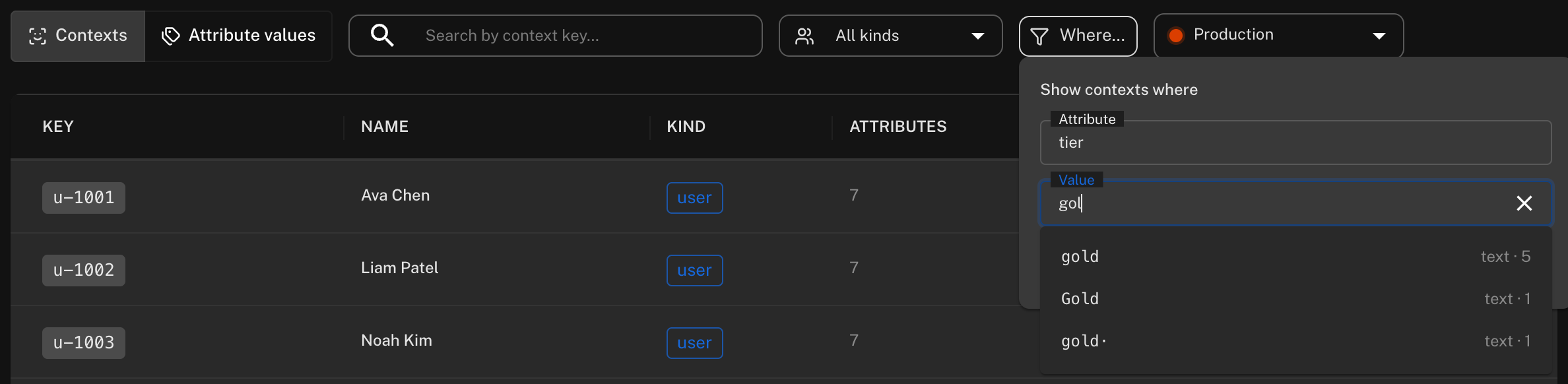
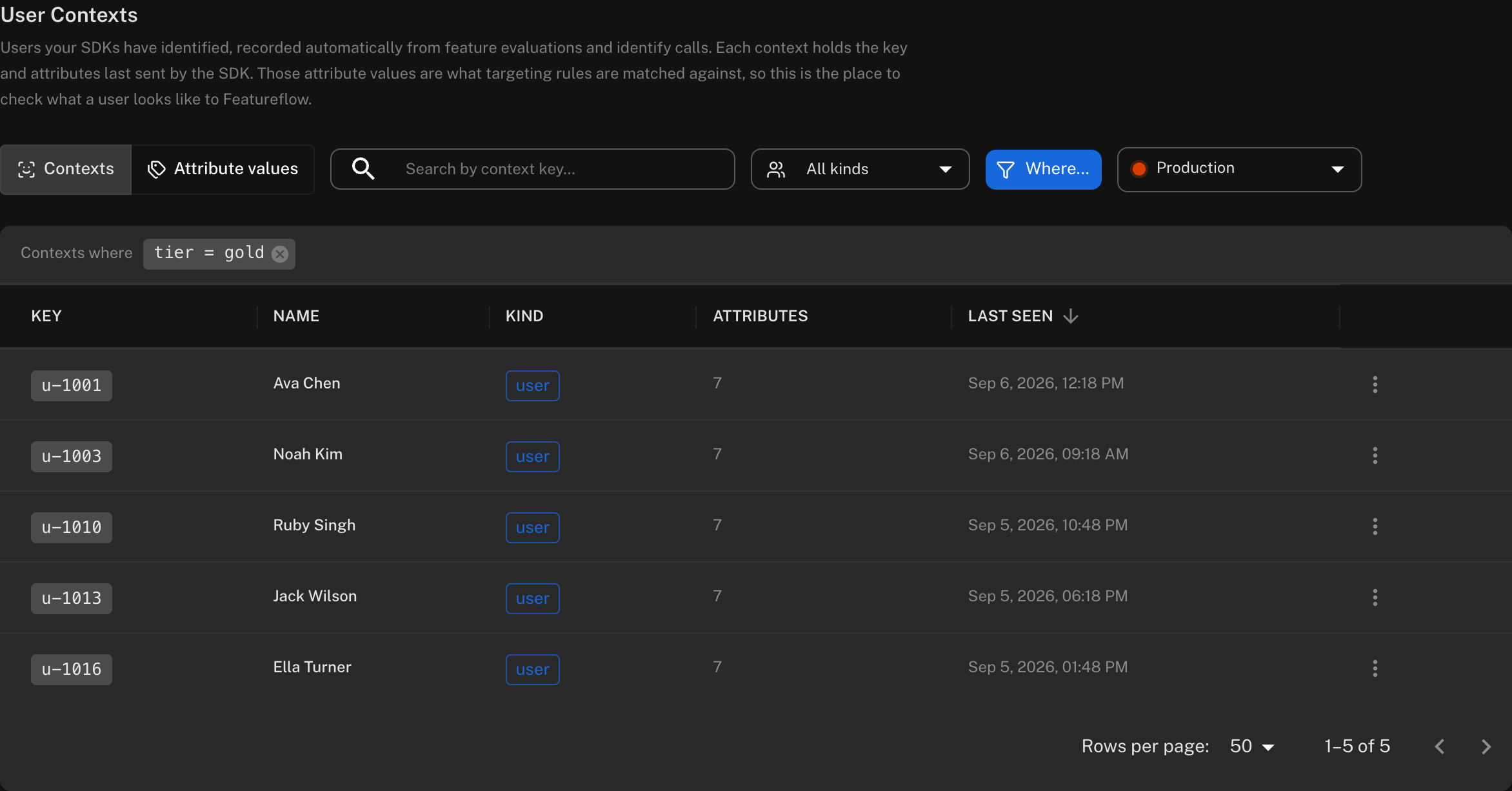
- Where… filters the list to contexts carrying one attribute value, for example
tier = gold. Both fields suggest from what has been recorded, with the type and count of each value, and both accept typed text. The active filter shows as a chip above the table; click it to change it or its cross to clear it.
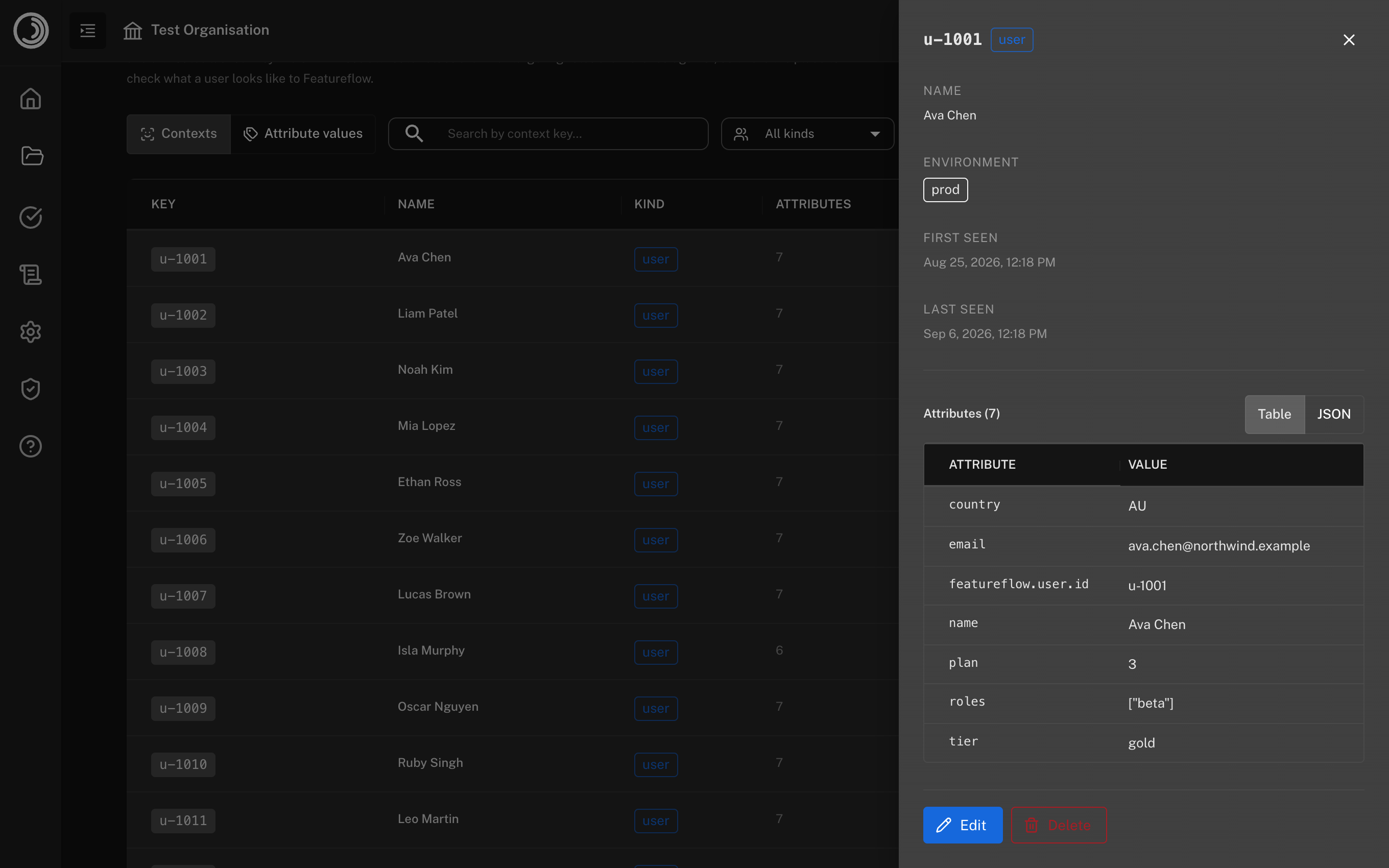
Click a row to open the context. The drawer shows every attribute exactly as it was last sent, including its type: text, number, boolean or list.
Editing and deleting a context
From the row menu or the drawer you can Edit a context's attributes or Delete it.
Both are corrections to stored data, not to your application. The next time the SDK sees that user, it writes the attributes it was given, so an edited value is overwritten and a deleted context comes back. Use them to tidy data that is already wrong; fix the source in your application to keep it right.
Deleting a context can also delete the targeting values recorded for that user. Leave the checkbox ticked unless you have a reason to keep them.
Attribute values
Switch the tab to Attribute values to see the data the way targeting sees it. The left-hand list holds every attribute that has been recorded in the environment, with the number of contexts carrying it. Select one to list its distinct values, each with its type and how many contexts hold it.
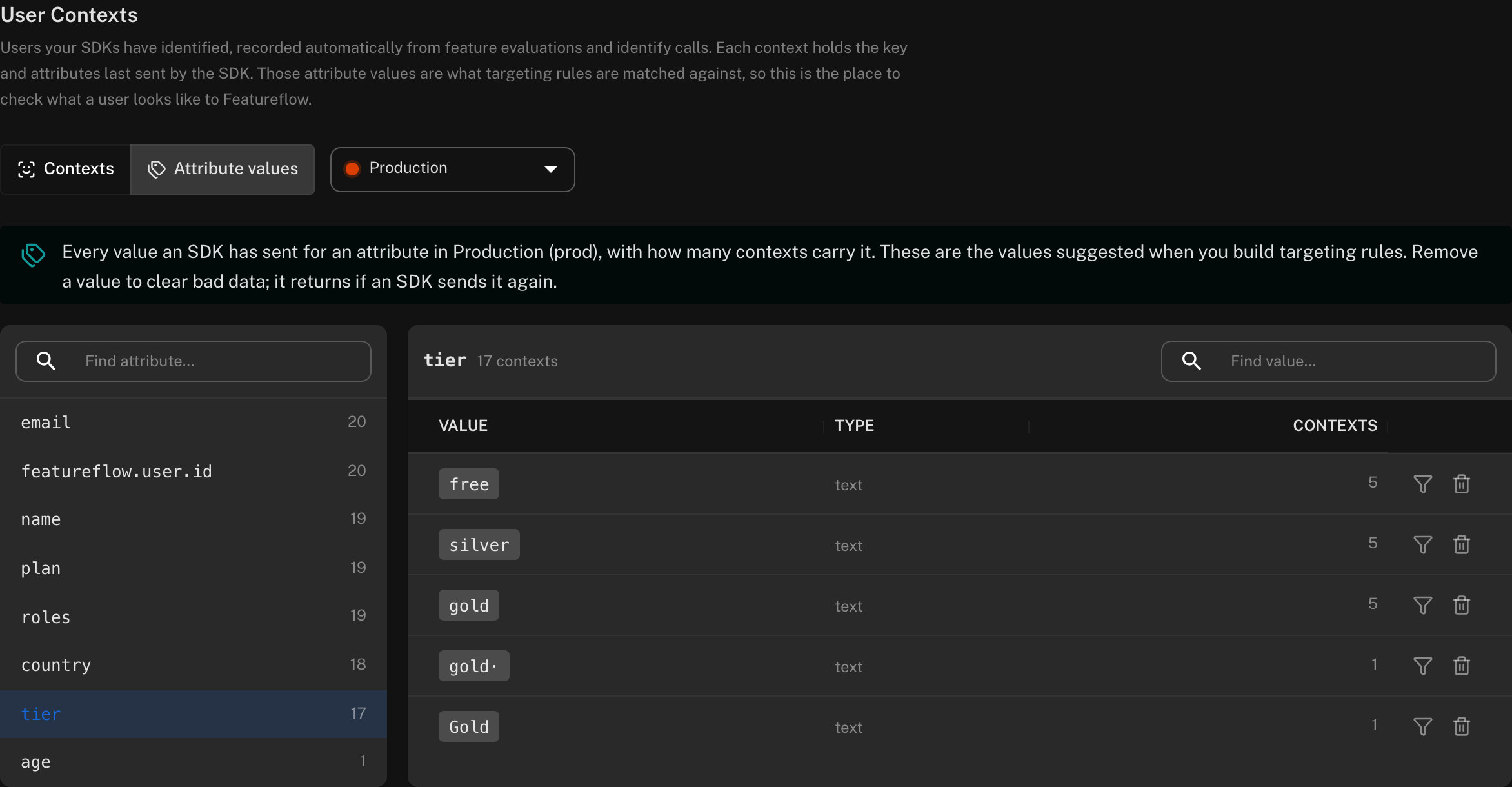
This is the quickest way to spot polluted data: a tier recorded as gold, Gold, GOLD and
gold with a trailing space, a country sent as both AU and au, or a plan sent as the number
3 by one service and the text "3" by another. Leading and trailing spaces are drawn as dots so
they are visible.
Types matter. Targeting comparators match strictly by type, so the text "3" never matches a
number comparator and the number 3 never matches a text one. If an attribute shows the same value
under two types, one of your applications is sending the wrong one.
The two icons on a value row:
- Show contexts switches back to the list, filtered to the contexts that carry the value, so you can see which users and, from their other attributes, which application sent it.
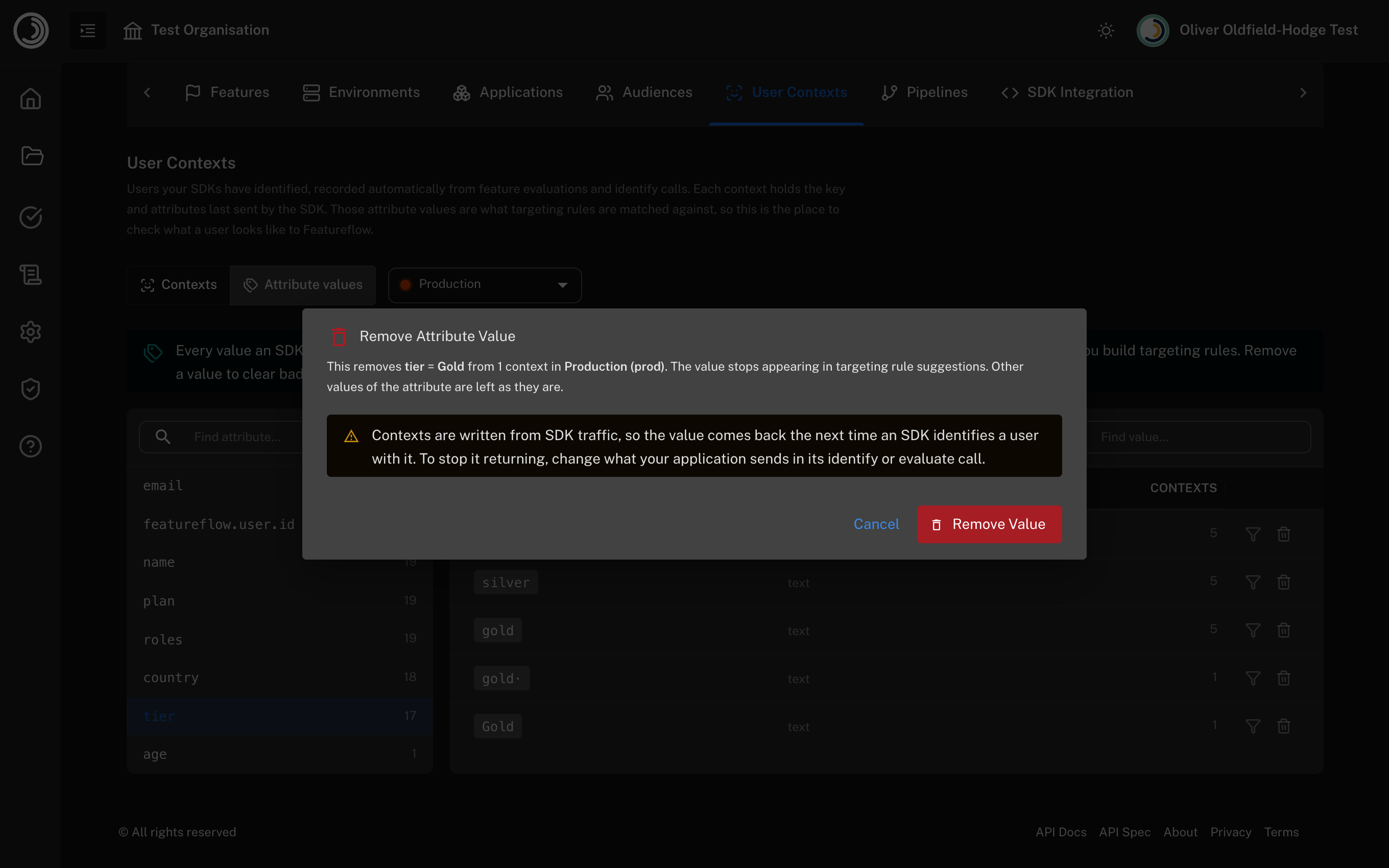
- Remove strips the value from every context in the environment. Other values of the attribute are untouched. For list attributes the value is removed from the list and the rest is kept.
Removed values can come back
Removing a value cleans the stored data. It does not stop an SDK sending the value again, and the
next identify or evaluate call that carries it recreates it. Removal is the right tool to clear
suggestions from targeting rules once you have fixed the source; on its own it only buys time.
To fix the source, change what your application passes when it identifies the user. The SDK guides show the user object for each language. Normalising values before they reach the SDK, for example lower-casing a tier or trimming whitespace, keeps this list clean permanently.
Removing a value does not change any targeting rule or audience that already uses it. Edit those separately.
Permissions
Viewing contexts needs access to the project and environment. Editing, deleting and removing values in a production environment need the same role as any other production change.
Related
- Targeting features for how attribute values are compared
- Audiences for reusable conditions built from these attributes