Approvals
Approvals add a review step to feature changes. When approvals are required, a change to a feature's targeting in an environment is not applied immediately — it is submitted as a pending change, and only takes effect once an approver has reviewed and approved it.
How Approvals Work
An approval is required for a feature control change when any of the following is enabled:
- Environment-level — the environment has Require approval for changes enabled. Every feature change in that environment requires approval. This is typical for production environments.
- Feature-level — the feature has Require approval for changes enabled. Changes to that feature require approval in every environment.
- Release pipeline phase — the feature is assigned to a release pipeline whose phase for that environment requires approval.
These combine with OR logic — if any one of them applies, the approval flow runs.
Requiring Approvals for an Environment
Environment-level approval is the broadest gate: any feature control change in that environment (toggling a feature on or off, or editing its targeting rules) must be approved.
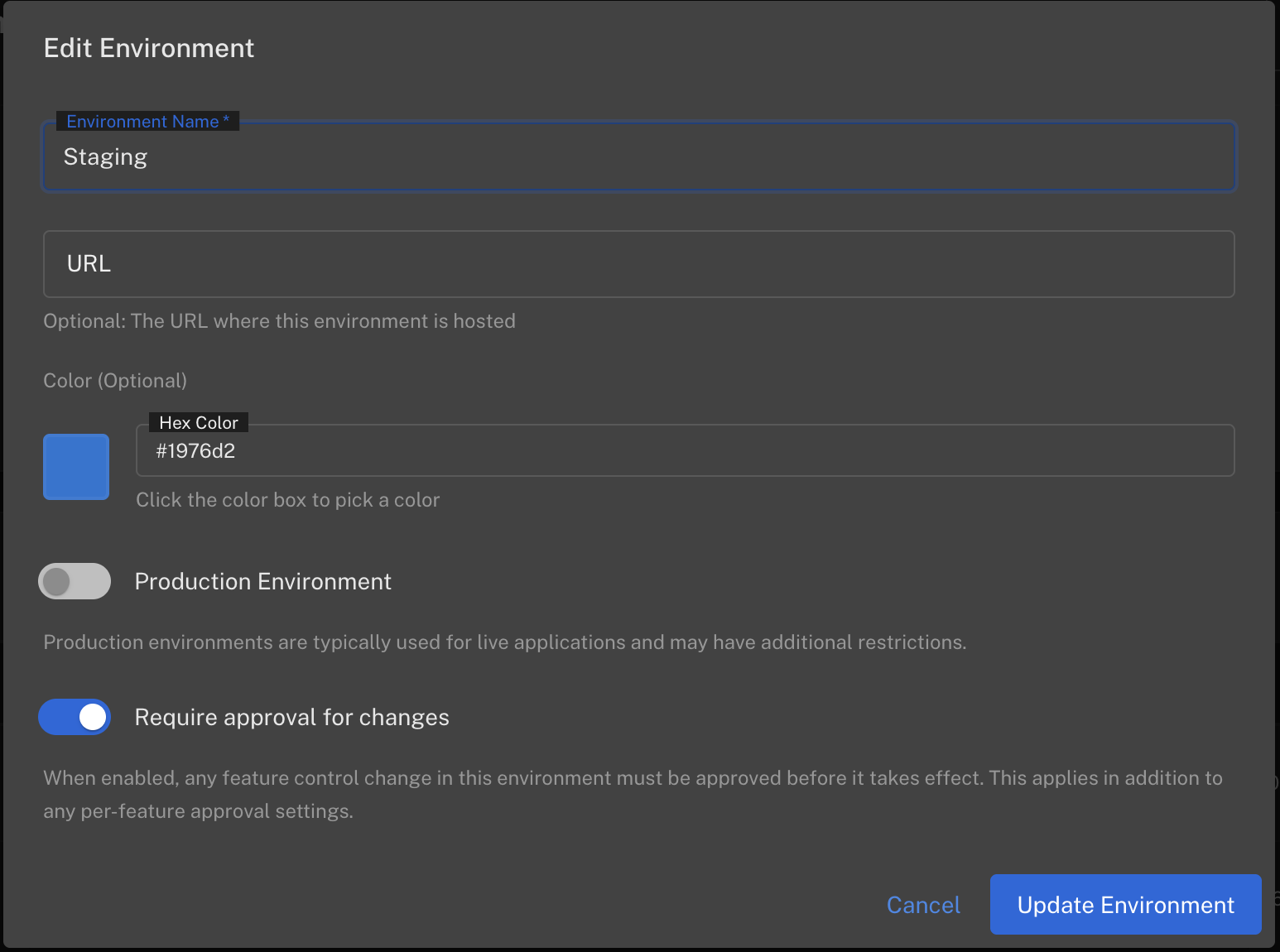
To enable it on an existing environment:
- Go to Admin → Projects and select your project
- Open the environment's menu and choose Edit
- Enable Require approval for changes
- Click Update Environment
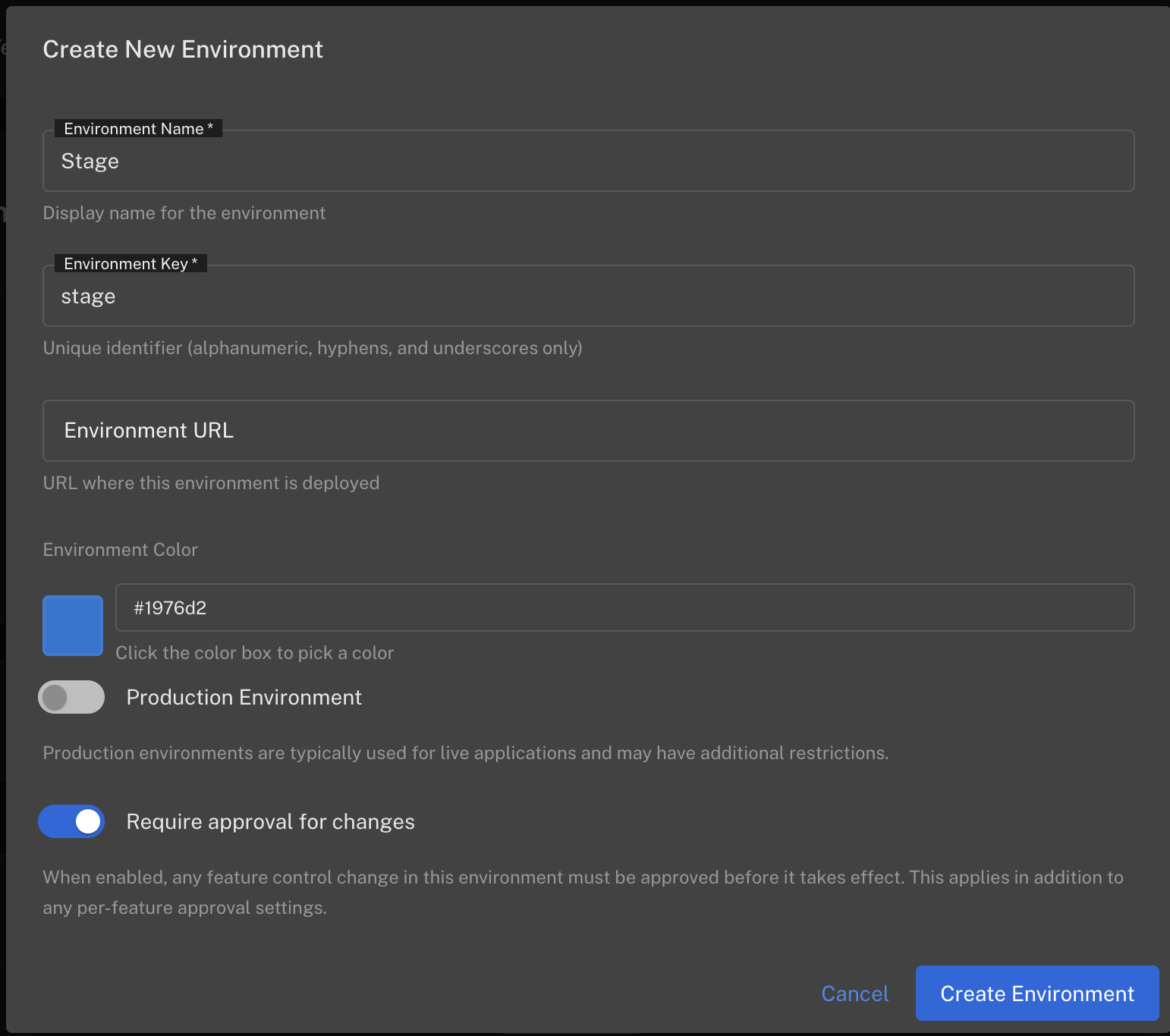
You can also enable it up front when creating a new environment:
Requiring Approvals for an Individual Feature
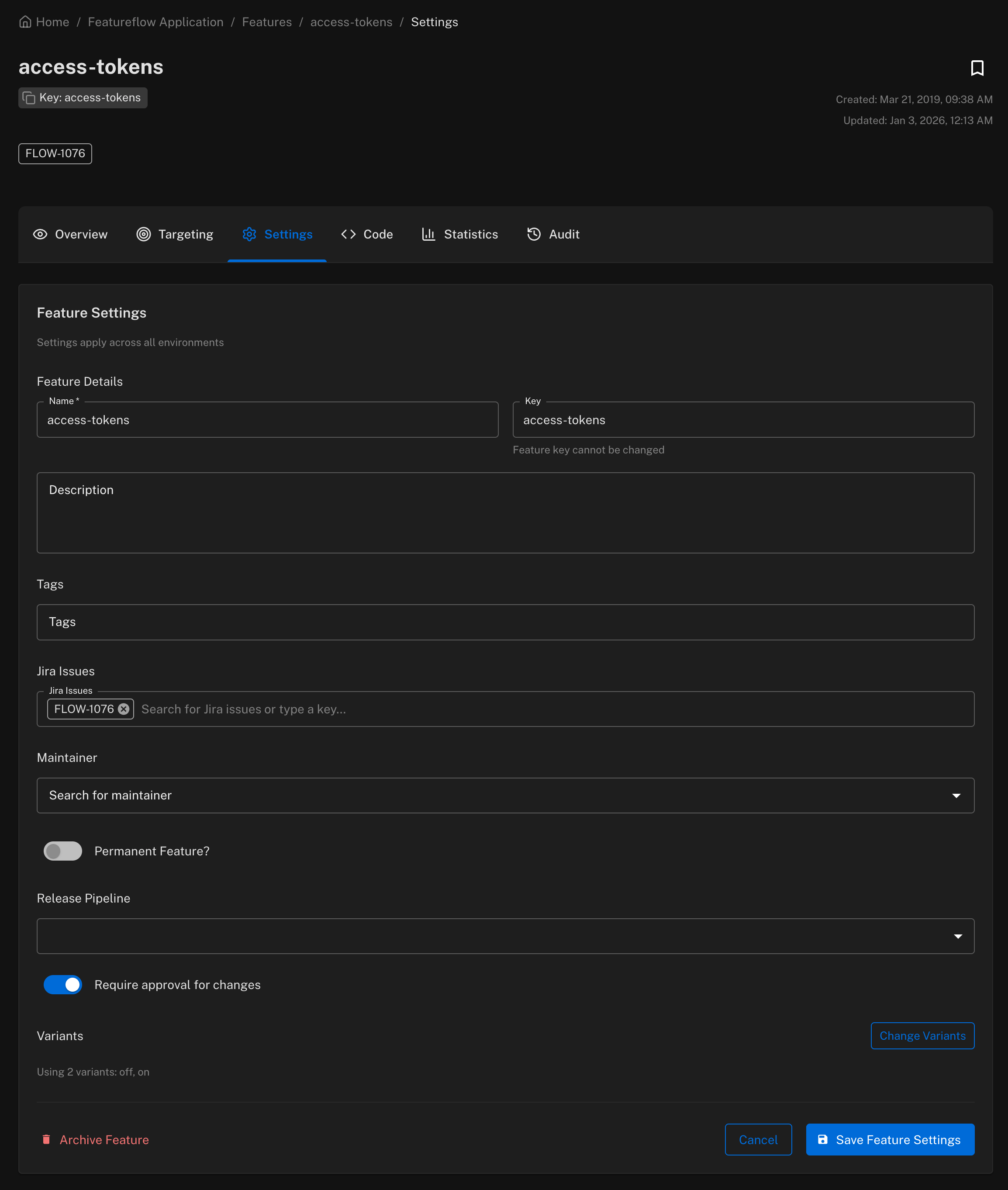
Feature-level approval protects a single sensitive feature across all environments, in addition to any environment-level setting.
- Open the feature and go to the Settings tab
- Enable Require approval for changes
- Click Save Feature Settings
Making a Change When Approvals Are Required
Update the feature's targeting as usual — toggle the feature on or off, or edit its rules in the Targeting tab. When you save, Featureflow detects that the change requires approval and asks you to submit it for review instead of applying it:
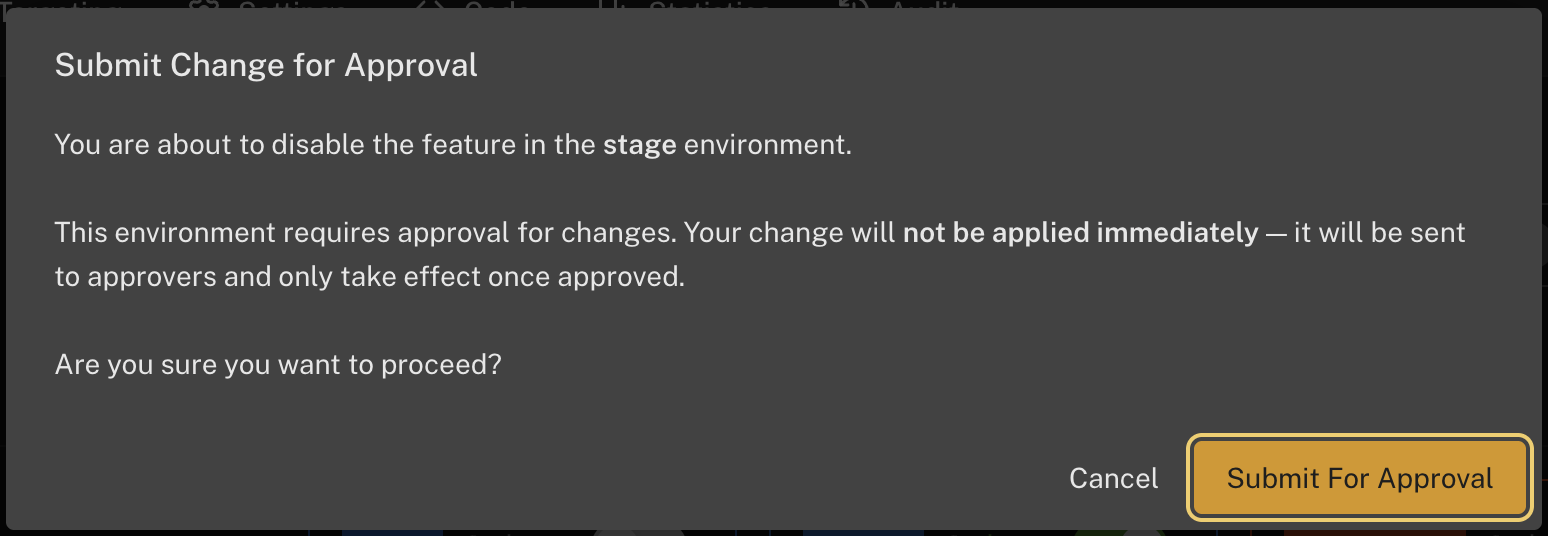
Click Submit For Approval to create the pending change. Note that:
- The change is not applied — the feature keeps its current configuration until the change is approved.
- Only one pending change is allowed per feature per environment. Another change can't be submitted until the pending one is approved, rejected, or cancelled.
- Approvers are notified that a change is waiting for review.
Viewing and Reviewing Approvals
Open Approvals from the main navigation to see all approval requests. The tabs filter by status: Pending, Approved, Rejected, and Cancelled.
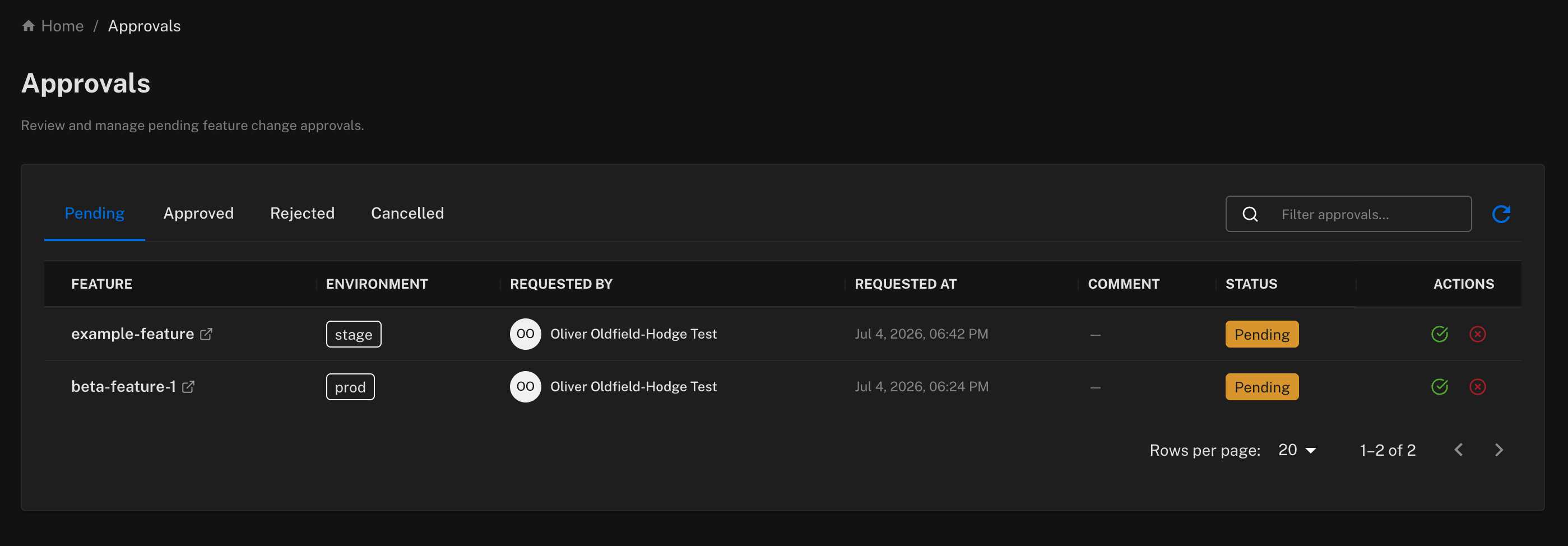
Click a row to open the approval detail and validate the change before acting on it. The detail shows the feature and environment, who requested the change and when, and the requested configuration — the enabled state, the off variant, and a change summary describing exactly what will change (for example, "changed the targeting rules from for all users show the on variant to if featureflow.date after 2026-07-05 show the on variant else for all users show the off variant").
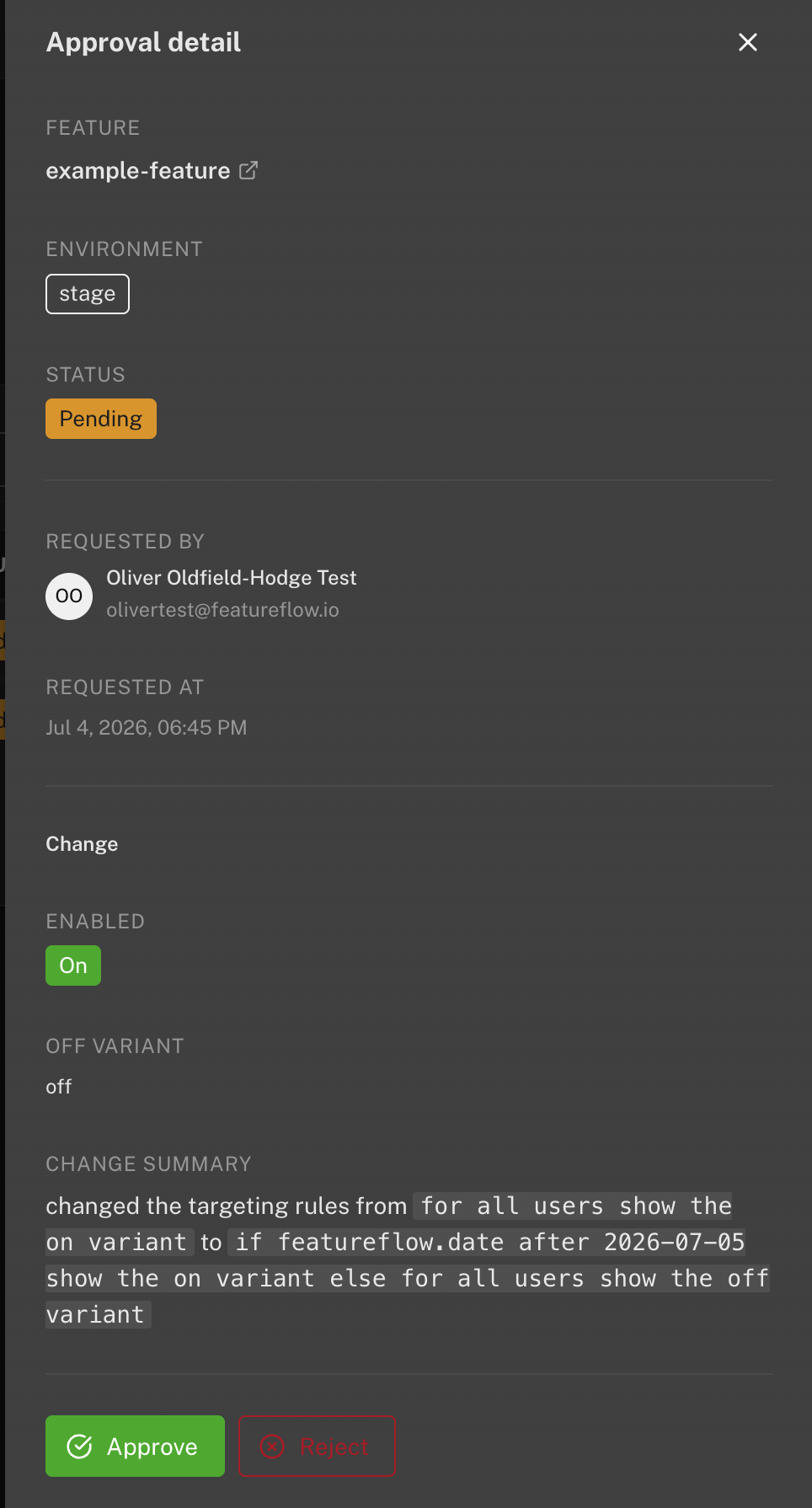
From here you can:
- Approve — the change is applied to the feature in that environment immediately.
- Reject — the change is discarded; the feature keeps its current configuration.
- Cancel — if you are the requester, you can withdraw your own pending change.
Approved, rejected, and cancelled requests remain visible in their respective tabs as a history of change requests.
Setting Up Approvers
Approvers are set per team member in Admin → Team:
- Go to Admin → Team
- Click the edit icon next to the team member
- Enable Can approve changes
- Click Update
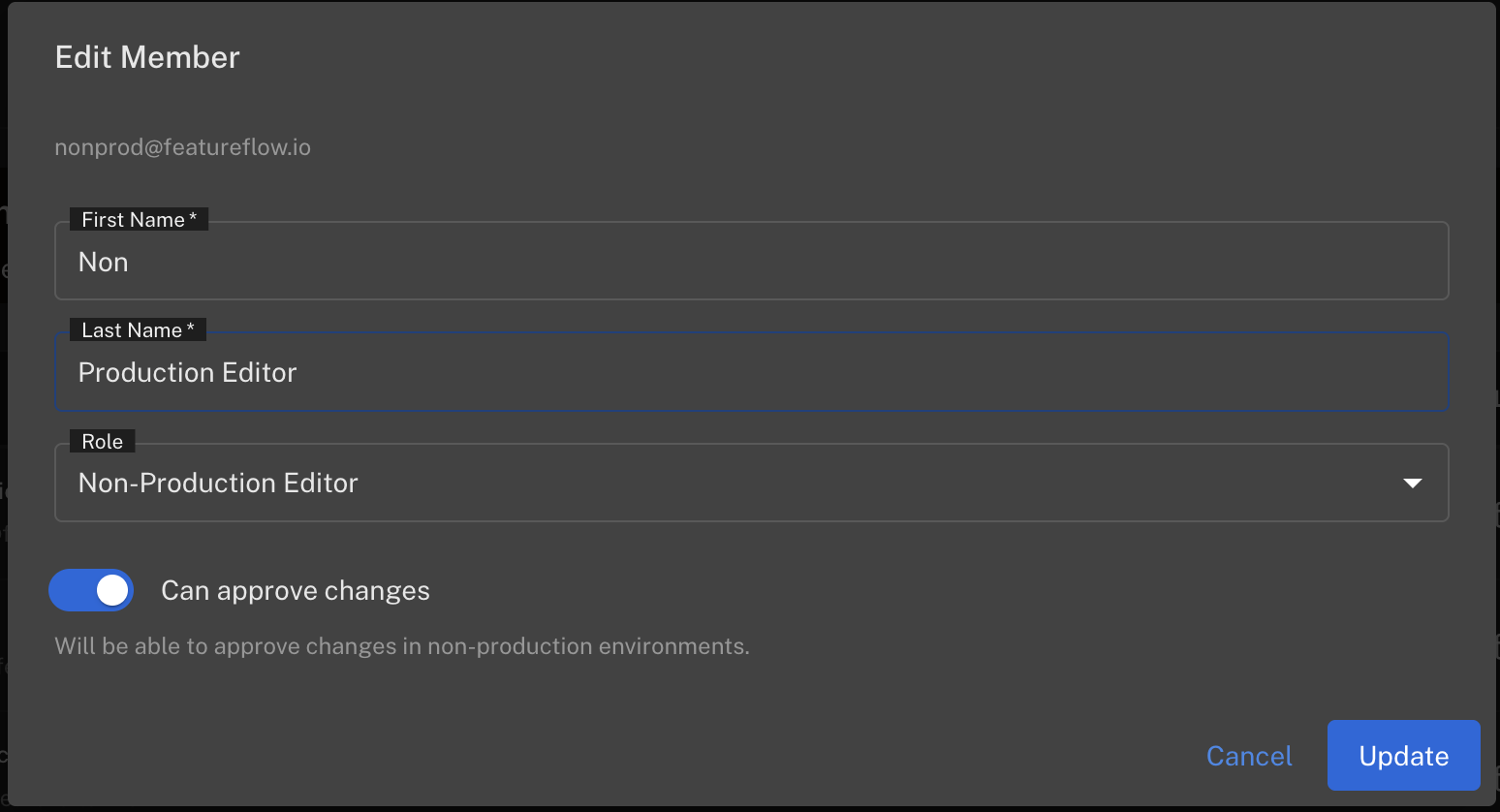
The member's role determines where they can approve — an approver can only approve changes in environments they are able to edit:
- A Non-Production Editor with Can approve changes enabled may approve requests in non-production environments only.
- A Production Editor with Can approve changes enabled may also approve requests in production environments.
- Organisation Administrators may always approve or reject requests — they do not need the approver setting.
Approvers are shown with an Approver chip alongside their role in the team list:

Requesters can always cancel their own pending changes, but cannot approve them.